GGyess
Project folders

Give the next file an obvious home.

A folder named for the client saves everyone from asking where each new file goes. Organize folders by project and agree where to keep originals, drafts and finished deliveries.

Inside GGyessEnlarge screenshot
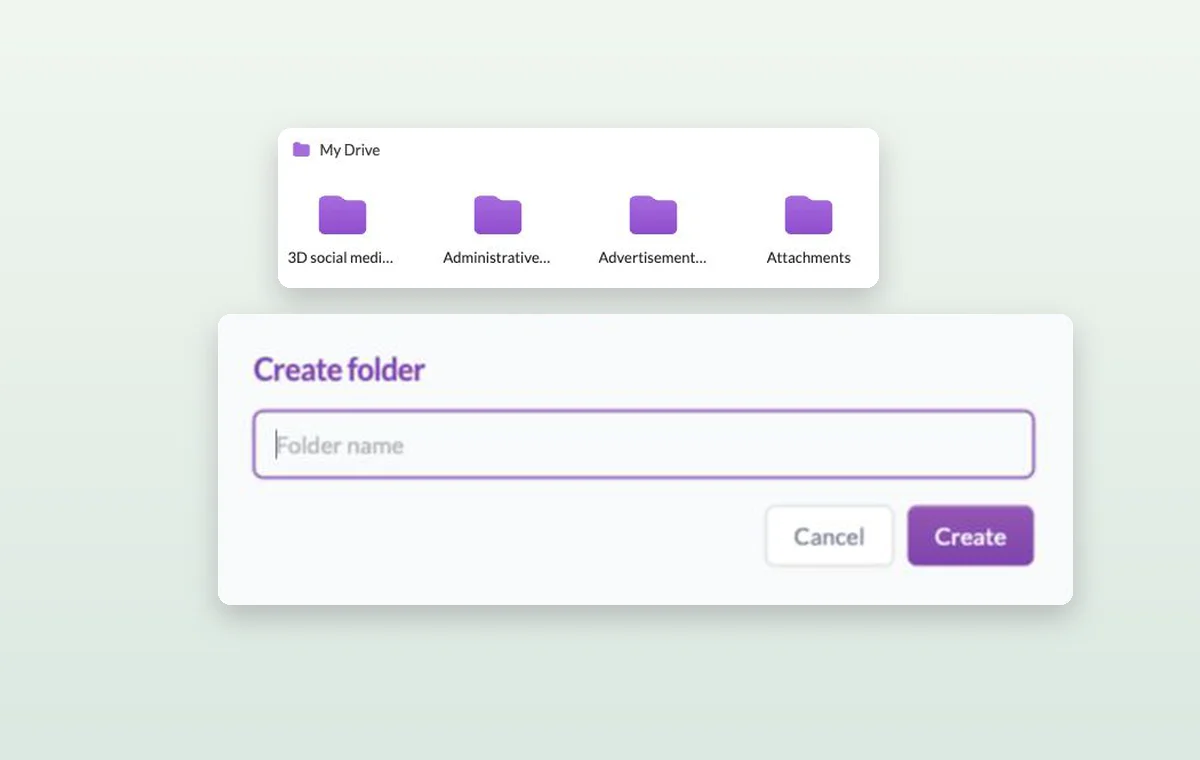
Folders in GGyess Storage and the form for naming a new folder.
Choose the new folder option in storage and enter a name the team will recognize.
Step by step

Make the right file easy to recognize

  1. Choose a naming convention the team will recognize.

  2. Create the project folder in storage.

  3. Open it before uploading the files that belong there.

Inside GGyessEnlarge screenshot
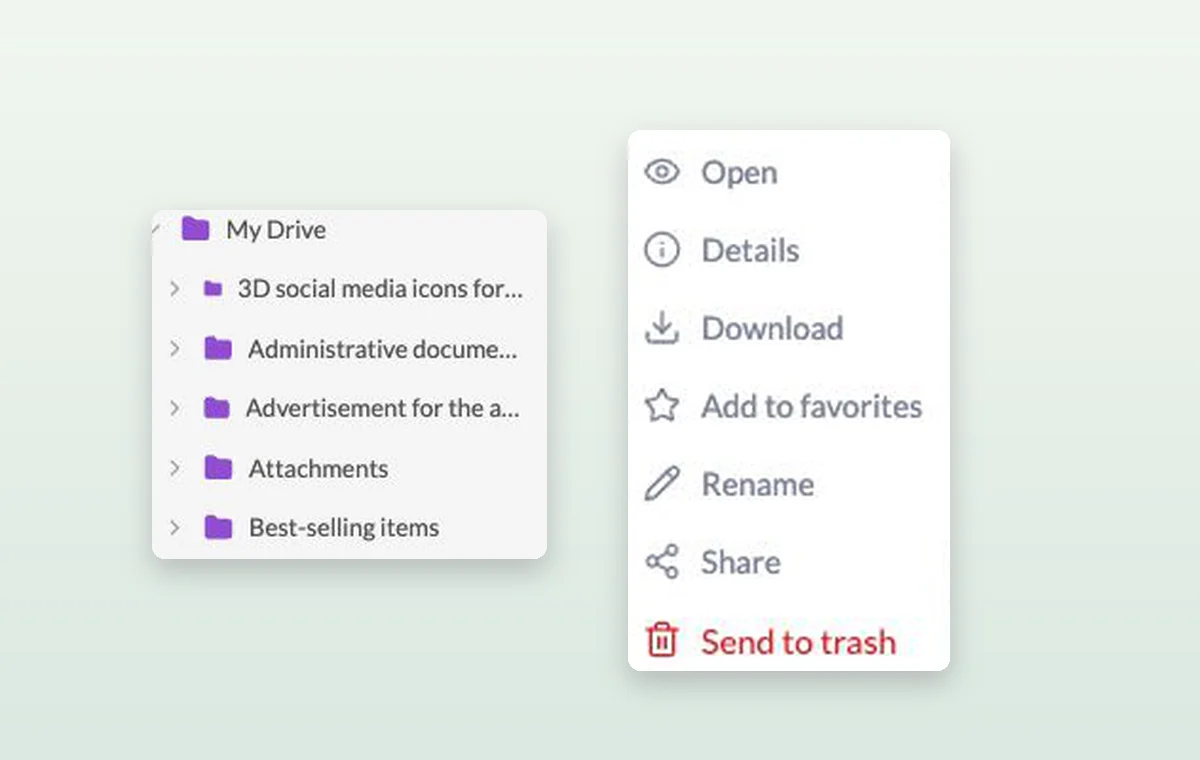
The folder tree and file menu with options to open, rename, share or download a file.
Project folders

In day-to-day work

A folder you can find again

Group files into folders, give them recognizable names and filter by type when you need to find one particular deliverable.

The file that goes with the task

Keep source files in storage and attach the relevant one to the task. The person starting work can open it with the instructions.

A home for each project

Name the project, describe the outcome and set its working days. The team can add its tasks there as the work takes shape.

Before you start

A few good questions.

How should I organize a client’s files?

Start with a client or project folder and use a small set of names for briefs, working material and final deliveries.

How is a file different from a GGyess document?

A file is uploaded material such as an image or a PDF. A native document is created in an editor, for example Text, Page, Sheet or Diagram.

GGyess WorkSuite

Make room for the next delivery.

Start on the free plan. Invite your team when you’re ready.

GGyess screenshot