GGyess
File storage

Find the file without asking someone to resend it.

The client needs a document. The only person who knows where to find it is in a meeting. Keep project materials in shared GGyess folders so the team knows where to find them when it counts.

Inside GGyessEnlarge screenshot
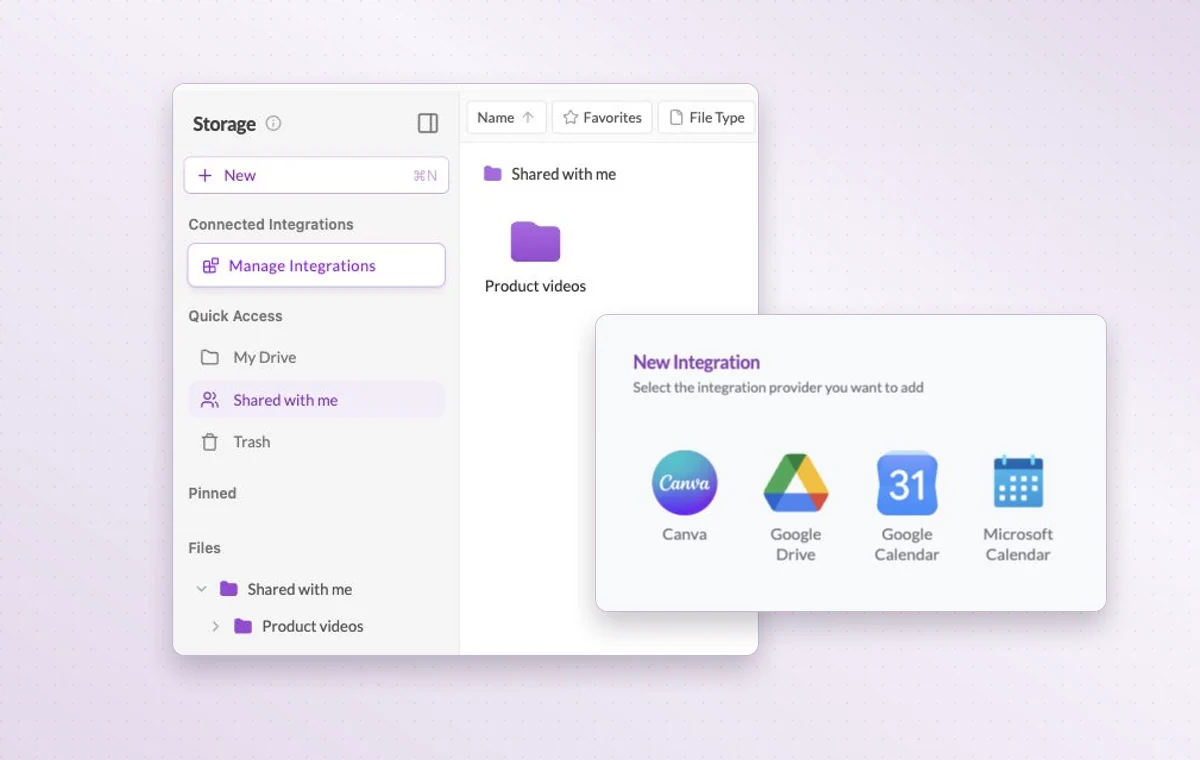
A shared folder in GGyess Storage and the available integration providers.
Shared with me lists the folders available to you. Open the one for your project to see what’s inside.
Step by step

Keep project files within reach

  1. Create a folder for a client or project.

  2. Upload and name the files so colleagues recognize them.

  3. Find a file by type and bring it into the work that needs it.

Inside GGyessEnlarge screenshot
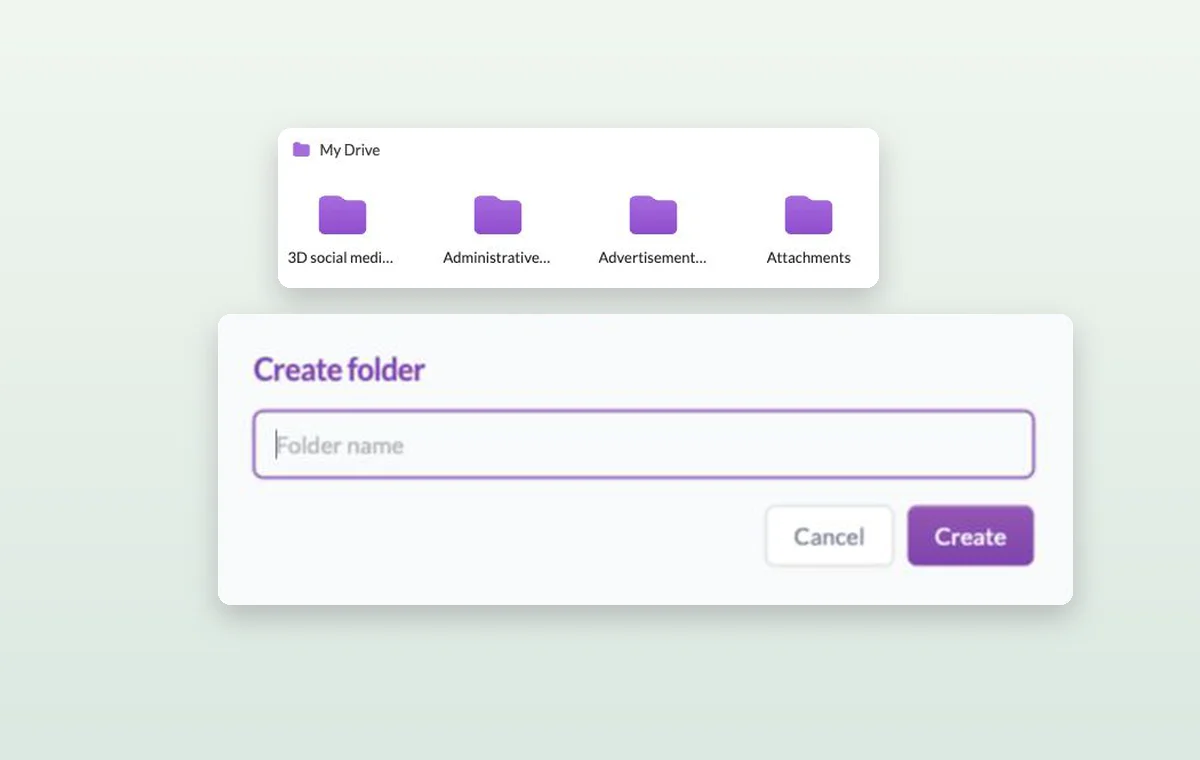
Folders in GGyess Storage and the form for naming a new folder.
File storage

In day-to-day work

A folder you can find again

Group files into folders, give them recognizable names and filter by type when you need to find one particular deliverable.

The file that goes with the task

Keep source files in storage and attach the relevant one to the task. The person starting work can open it with the instructions.

The right access for the job

When someone joins, review their access to the workspace and project, including their permissions for tasks, documents and files.

Explore these features

Before you start

A few good questions.

How much storage does a workspace include?

Storage capacity varies by plan. Open the workspace plan and usage information to see the allowance for your team.

How should I organize a client’s files?

Start with a client or project folder and use a small set of names for briefs, working material and final deliveries.

GGyess WorkSuite

Give the team a place to find the final delivery.

Start on the free plan. Invite your team when you’re ready.

GGyess screenshot