GGyess
File library

Recognize the file before you send it.

Three nearly identical filenames can turn a simple handoff into a guessing game. Check the preview or file details, then give it a name the next person can recognize.

Inside GGyessEnlarge screenshot
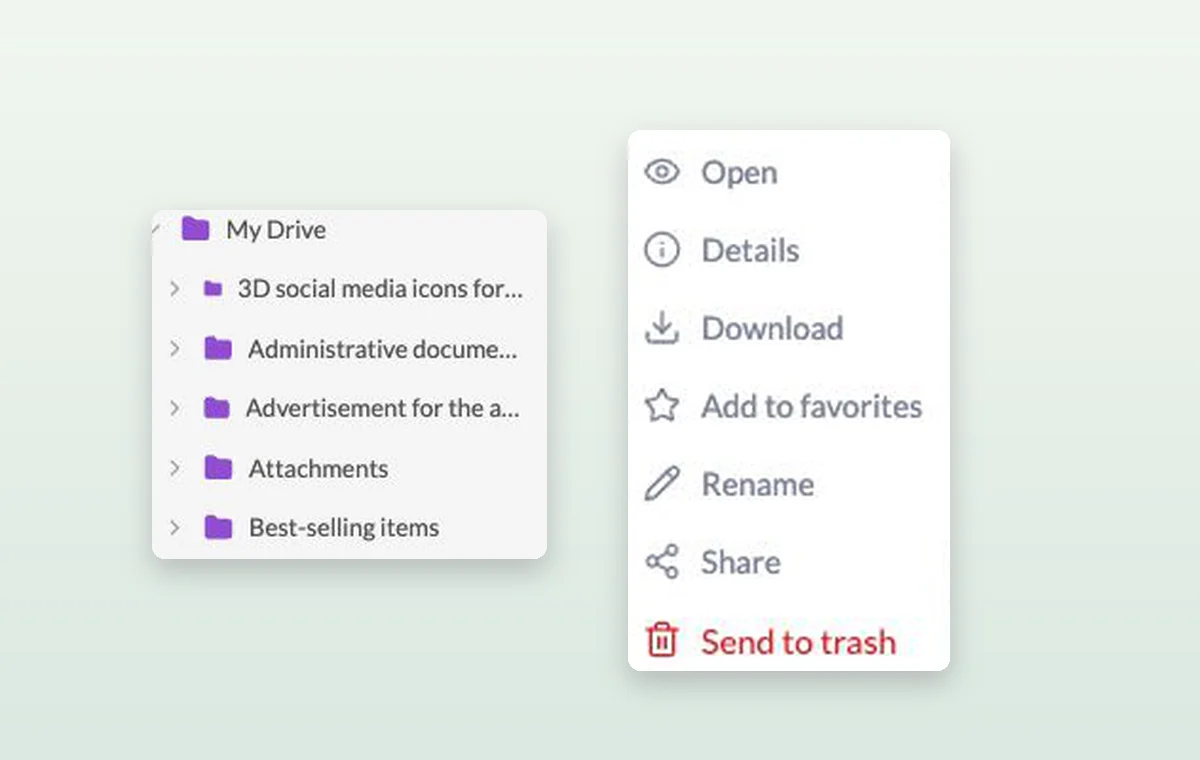
The folder tree and file menu with options to open, rename, share or download a file.
The file’s menu includes an option to rename it without uploading it again.
Step by step

Keep source files close to the delivery

  1. Upload the source file into its project folder.

  2. Check the name and preview or properties to identify it.

  3. Attach the relevant file to the activity being reviewed.

Inside GGyessEnlarge screenshot
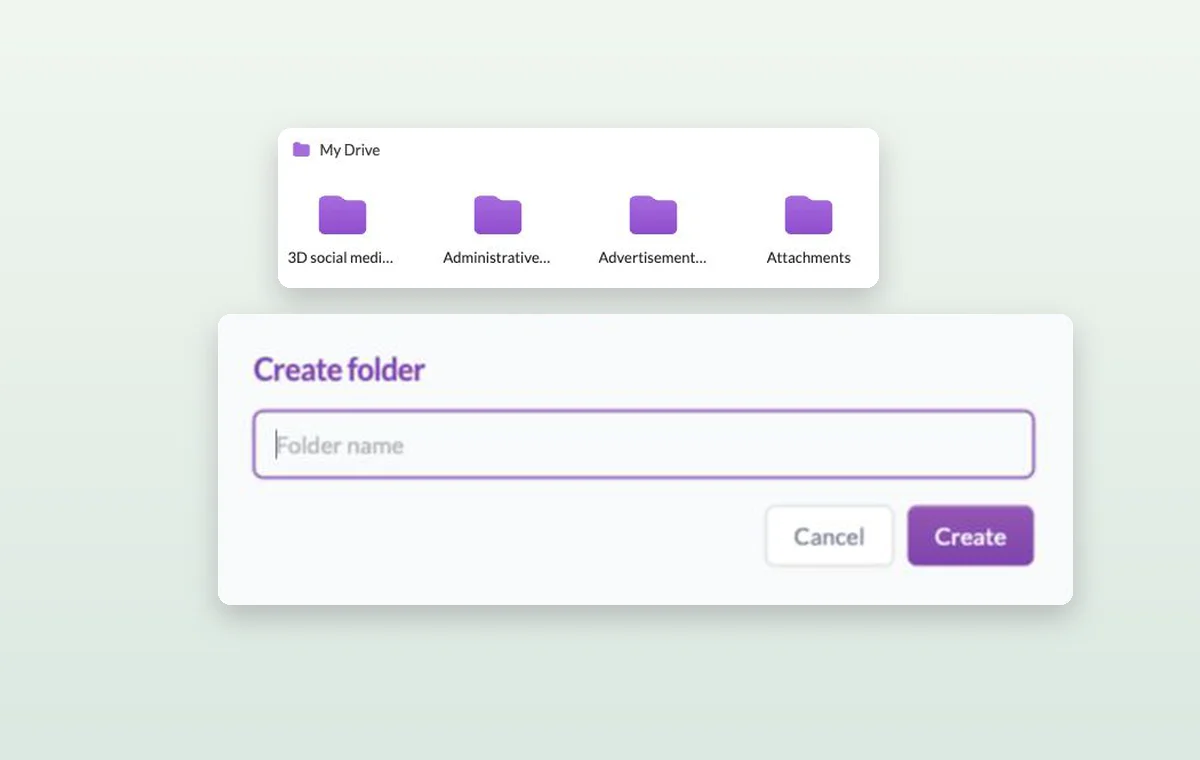
Folders in GGyess Storage and the form for naming a new folder.
File library

In day-to-day work

The file that goes with the task

Keep source files in storage and attach the relevant one to the task. The person starting work can open it with the instructions.

A folder you can find again

Group files into folders, give them recognizable names and filter by type when you need to find one particular deliverable.

A decision you can find again

Put a change request or decision in a task comment. The next person to open the task can read what was agreed before starting the revision.

Before you start

A few good questions.

How is a file different from a GGyess document?

A file is uploaded material such as an image or a PDF. A native document is created in an editor, for example Text, Page, Sheet or Diagram.

How should I organize a client’s files?

Start with a client or project folder and use a small set of names for briefs, working material and final deliveries.

GGyess WorkSuite

Send the handoff knowing which file you chose.

Start on the free plan. Invite your team when you’re ready.

GGyess screenshot