GGyess
Documents and storage

It’s saved somewhere. But where?

Work stops while someone searches for a file and sends it again. Give deliverables a shared folder in GGyess and attach the reference to the task of the person who needs it.

Inside GGyessEnlarge screenshot
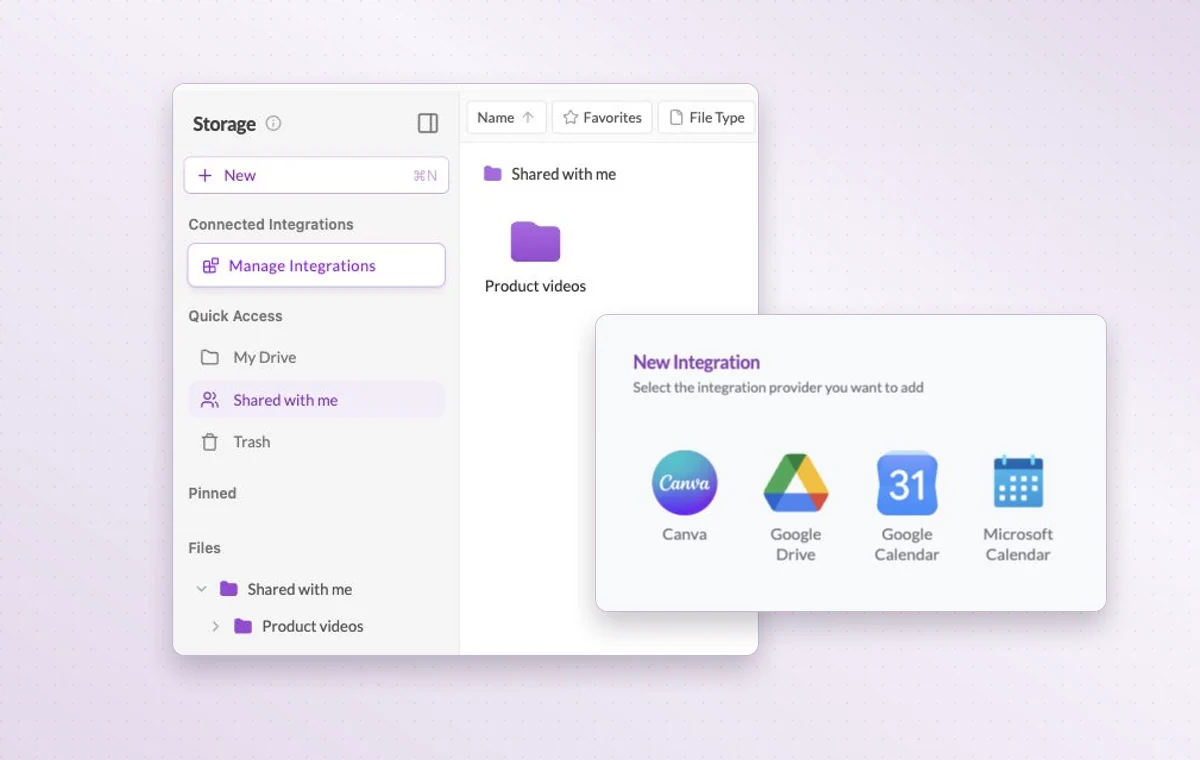
A shared folder in GGyess Storage and the available integration providers.
Shared folders and a file type filter help you locate a deliverable in storage.
Step by step

Set up the folder your team will look in first

  1. Create the working brief as a Page or Text document.

  2. Set up folders for references, working material and deliveries.

  3. Attach the needed source file when assigning a task.

Inside GGyessEnlarge screenshot
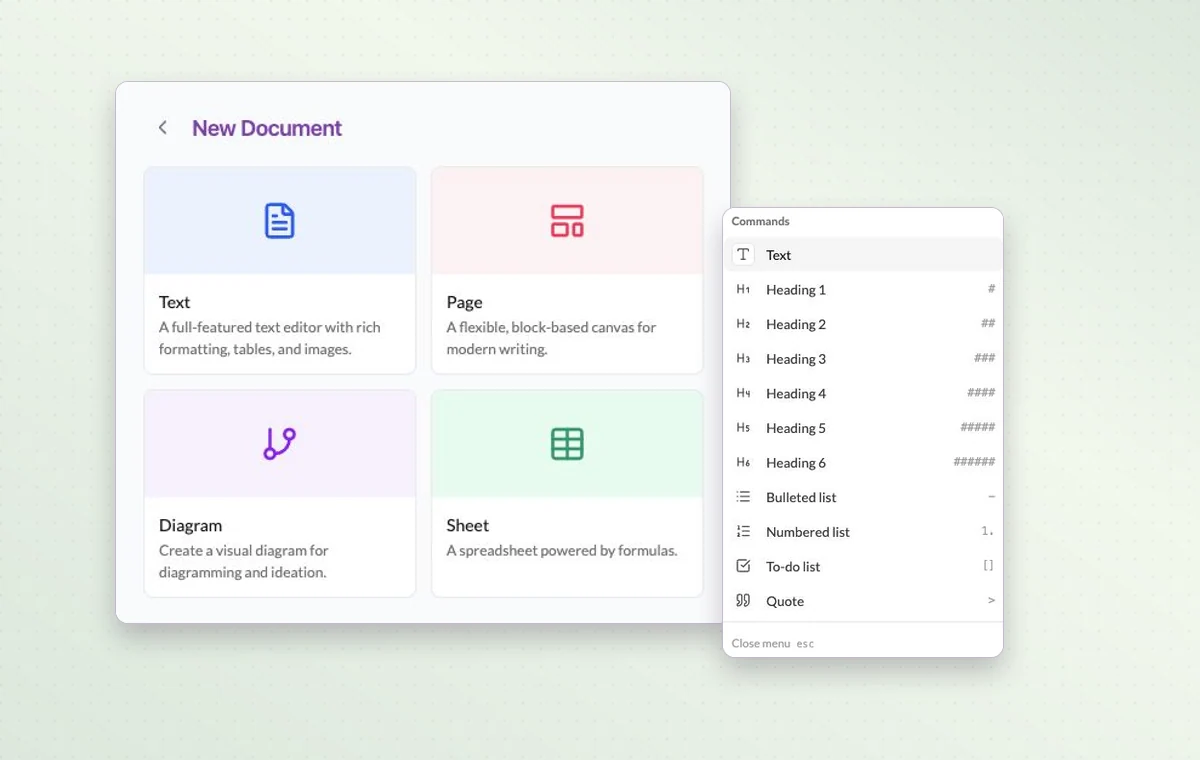
The four GGyess document types beside the block menu for a page.
Documents and storage

In day-to-day work

The agreement in writing

Draft the wording in a text document. Use a page with blocks for a brief that brings instructions, decisions and deliverables together.

A folder you can find again

Group files into folders, give them recognizable names and filter by type when you need to find one particular deliverable.

The file that goes with the task

Keep source files in storage and attach the relevant one to the task. The person starting work can open it with the instructions.

Before you start

A few good questions.

Where should we put an existing PDF or design file?

Upload it to storage in the appropriate project folder. Use a native document when you want to write or update the instructions inside GGyess.

Can I do calculations in a document?

Choose a Sheet document for cells and formulas such as SUM. Use Text or Page for narrative material.

GGyess WorkSuite

Your team can find the file even when you’re away.

Start on the free plan. Invite your team when you’re ready.

GGyess screenshot