GGyess
Departments and larger teams

One team is finished. Who takes it from here?

One department marks the work done. The next team doesn’t know it’s theirs. Assign the receiving task to a named person in GGyess with a deadline and a written description of what they should receive.

Inside GGyessEnlarge screenshot
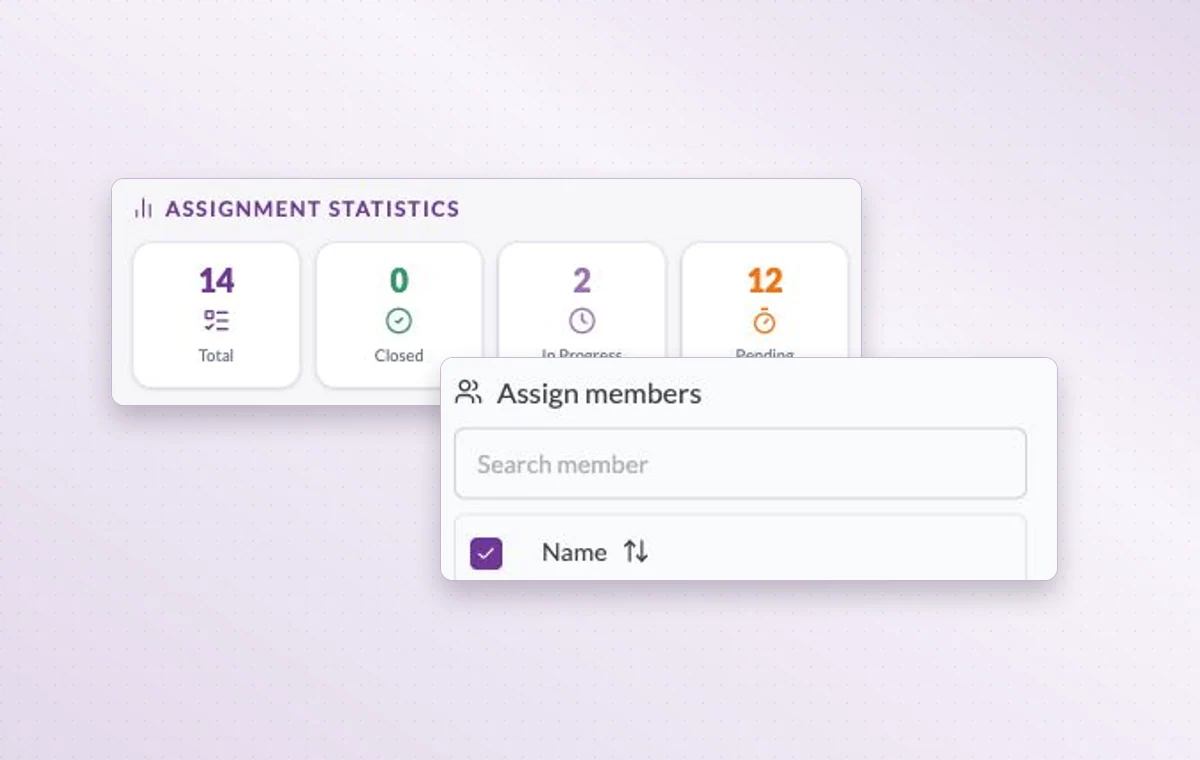
Member assignment statistics and the member search on a task.
Use the member picker to find the person on the receiving team who will take the next task.
Step by step

Agree on what the receiving team needs

  1. Define the deliverable, sending team and receiving owner.

  2. Add the people involved and write down what the receiving team should check.

  3. Review work at the handoff stage and record the receiving team’s decision.

Inside GGyessEnlarge screenshot
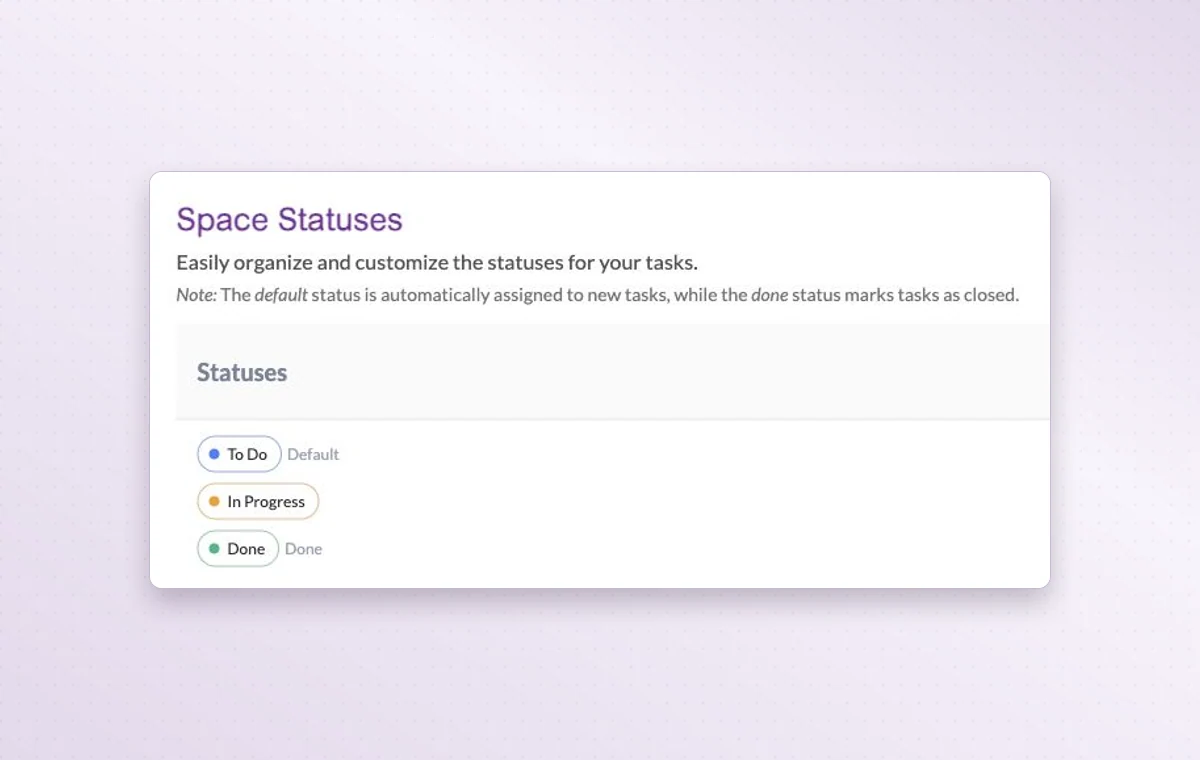
Space status settings show the defaults To Do, In Progress and Done.
Departments and larger teams

In day-to-day work

The people on this project

Choose the workspace members who will work on this project. You can look at the project membership when you need to know who’s involved.

The right access for the job

When someone joins, review their access to the workspace and project, including their permissions for tasks, documents and files.

The stages your team uses

Use project statuses that match the handoff. For example, “In review” tells the team a draft is ready for someone to read.

Before you start

A few good questions.

Can departments keep different working stages?

Yes. Each project can have its own statuses. Agree in writing on what the next team will receive and when they can start.

Where do I check project-specific access?

Open the member’s project permissions and inspect the relevant area, such as tasks, files or documents.

GGyess WorkSuite

Give every handoff someone ready to receive it.

Start on the free plan. Invite your team when you’re ready.

GGyess screenshot