GGyess / Features Give people the access their work calls for. One collaborator needs a document. Another project holds files they have no reason to see. Review each member’s role and permissions before you share the work.
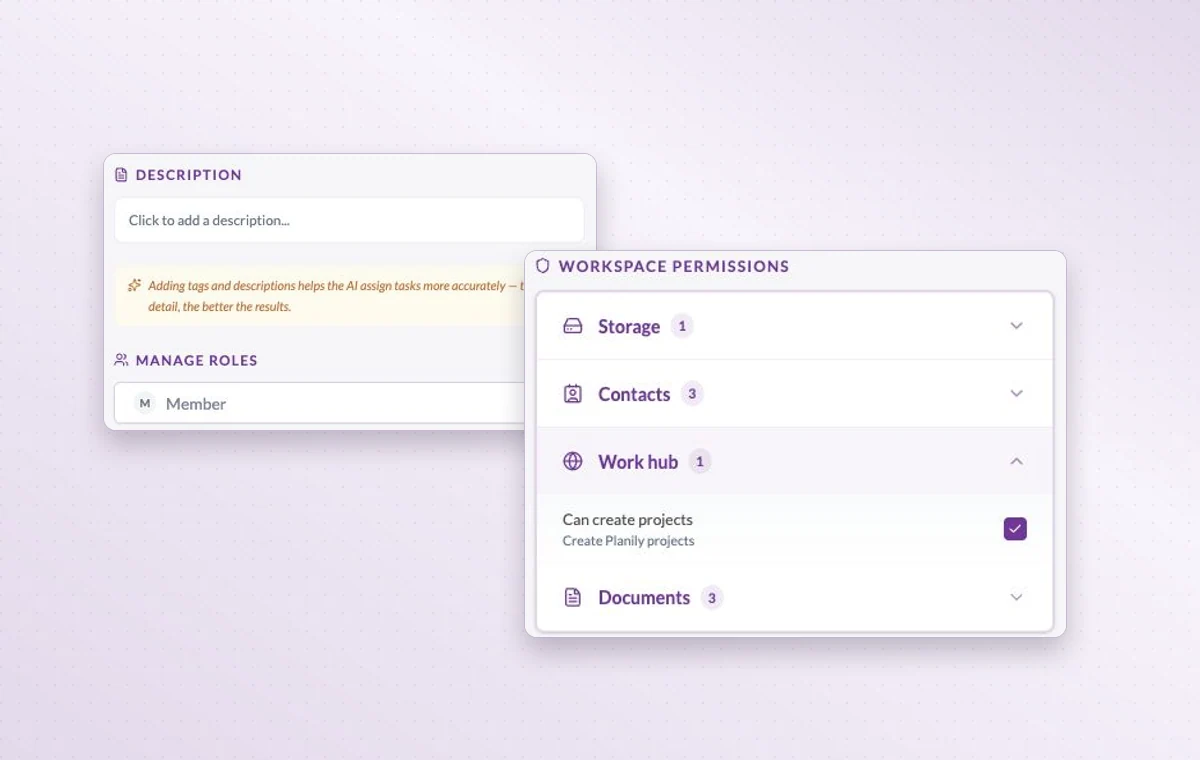
Permissions are grouped by area, including storage, contacts, the Work Hub and documents.
Give each person the access their work calls for 01 Identify the area where the person will work.
02 Review their workspace role and project permissions.
03 Revisit access when the assignment ends or changes.
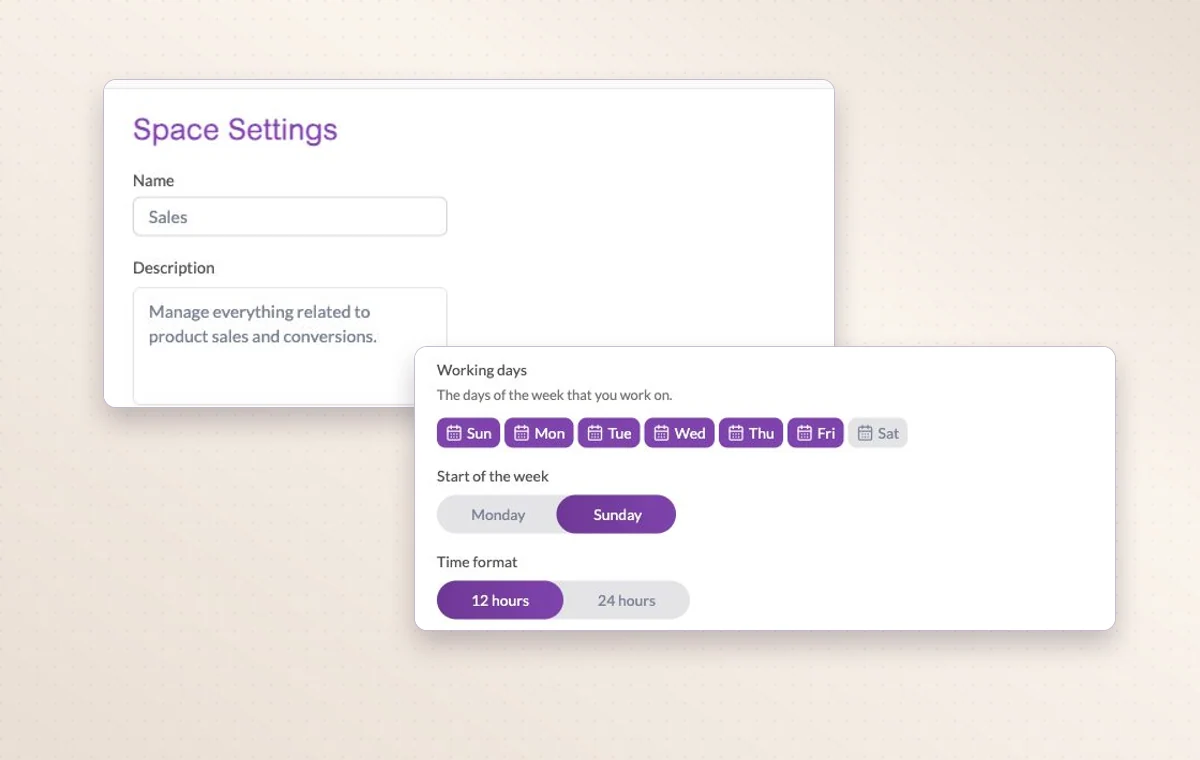
Project settings for a space, including working days and time format.
In day-to-day work The right access for the job When someone joins, review their access to the workspace and project, including their permissions for tasks, documents and files.
The people on this project Choose the workspace members who will work on this project. You can look at the project membership when you need to know who’s involved.
A home for each project Name the project, describe the outcome and set its working days. The team can add its tasks there as the work takes shape.
A few good questions. Where do I check project-specific access? Open the member’s project permissions and inspect the relevant area, such as tasks, files or documents.
What should I prepare before inviting someone? Identify the workspace, project and access level they need. A first task with a clear owner gives them a useful starting point.
Bring people in with the right access. Start on the free plan. Invite your team when you’re ready.
Cookie settings × Strictly necessary Always on
The site remembers your choice for 180 days in this browser. You can browse every page with optional tools turned off.
Your browser is sending a Global Privacy Control signal. Optional tools stay off.
We remember your advertising opt-out in this browser for at least 12 months. You can change it here if you wish.
I confirm my new advertising choice Français (Québec) Português (Brasil) Privacy Cookie policy
Your browser could not save this choice. Optional tools stay off.
We could not confirm this choice. Optional tools are off. You can try again or continue browsing.
Reject all Save preferences