GGyess
Team members

Bring the people doing the work into the project.

Being in the same company doesn’t put everyone on every project. Choose who belongs in each space, then assign the first tasks so each person knows where they’re needed.

Inside GGyessEnlarge screenshot
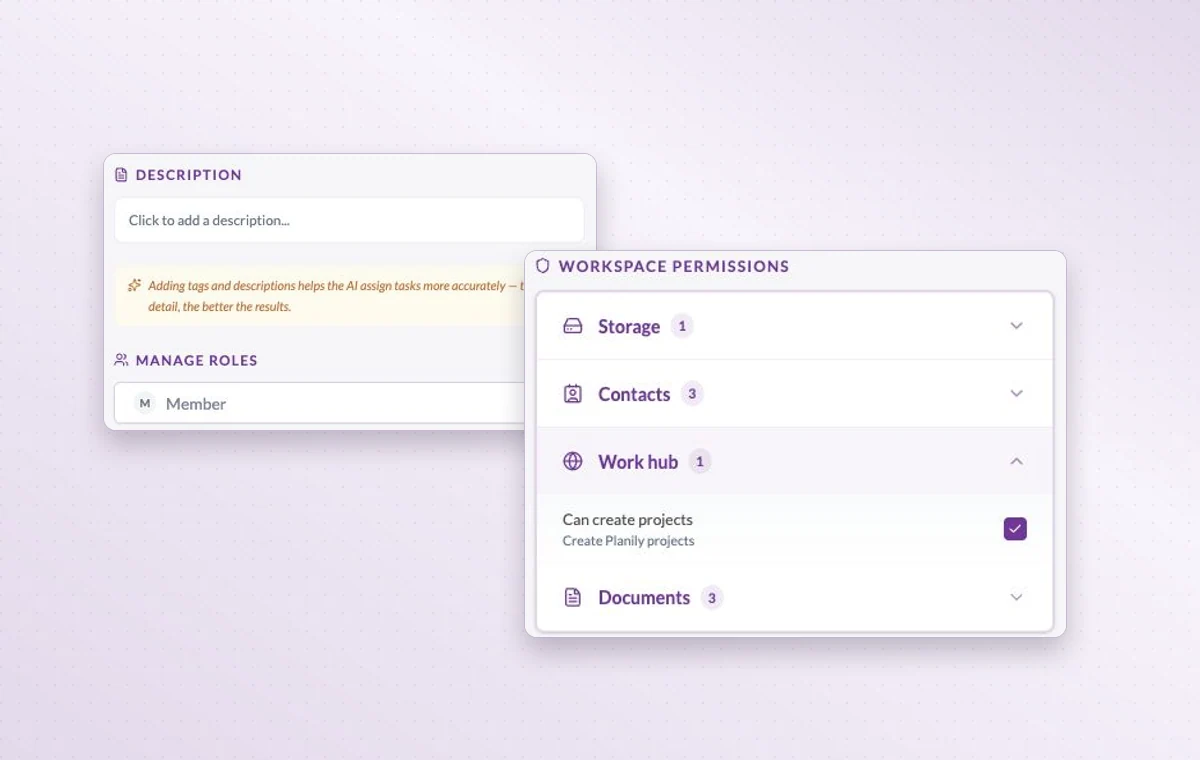
Member role settings and the workspace permissions for storage, contacts, Work Hub and documents.
Here you can review a member’s role and permissions for the Work Hub, contacts, documents and storage.
Step by step

Put the right people on the project

  1. Check the workspace member list.

  2. Add the relevant members to the project.

  3. Assign owners to the first deliverables.

Inside GGyessEnlarge screenshot
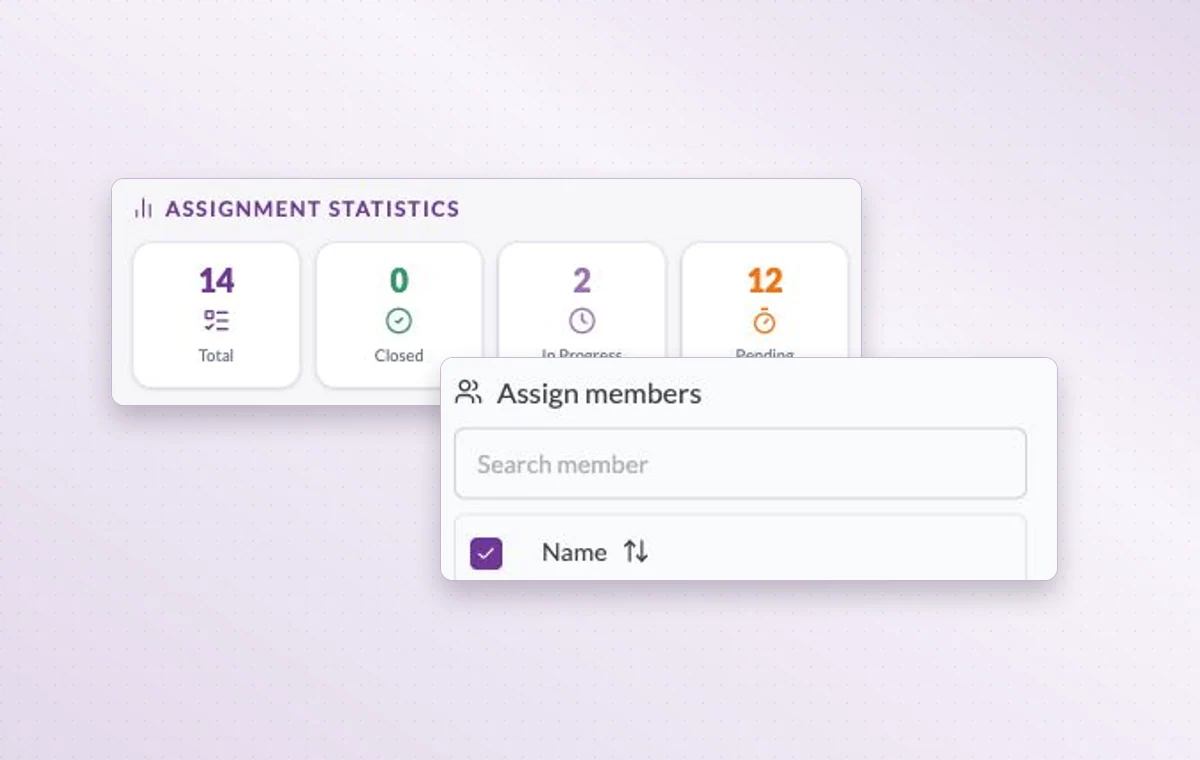
Member assignment statistics and the member search on a task.
Team members

In day-to-day work

The people on this project

Choose the workspace members who will work on this project. You can look at the project membership when you need to know who’s involved.

The right access for the job

When someone joins, review their access to the workspace and project, including their permissions for tasks, documents and files.

Someone to turn to

Assign the people responsible for the task. If the plan changes, the team knows who to speak to and which assignments to revisit.

Before you start

A few good questions.

Does every workspace member need every project?

Workspace membership and project membership are separate. Select the people who will contribute to each project and review their permissions.

What should I prepare before inviting someone?

Identify the workspace, project and access level they need. A first task with a clear owner gives them a useful starting point.

GGyess WorkSuite

Give everyone a clear place on the project.

Start on the free plan. Invite your team when you’re ready.

GGyess screenshot