
The person behind the account
Link a contact to their company and record what matters in the notes. A teammate can take the next call knowing who they’re speaking with.
The customer is asking again. Before you can reply, you need to know what your colleague tried. Record the contact, the last action and the next update date on a GGyess follow-up task.
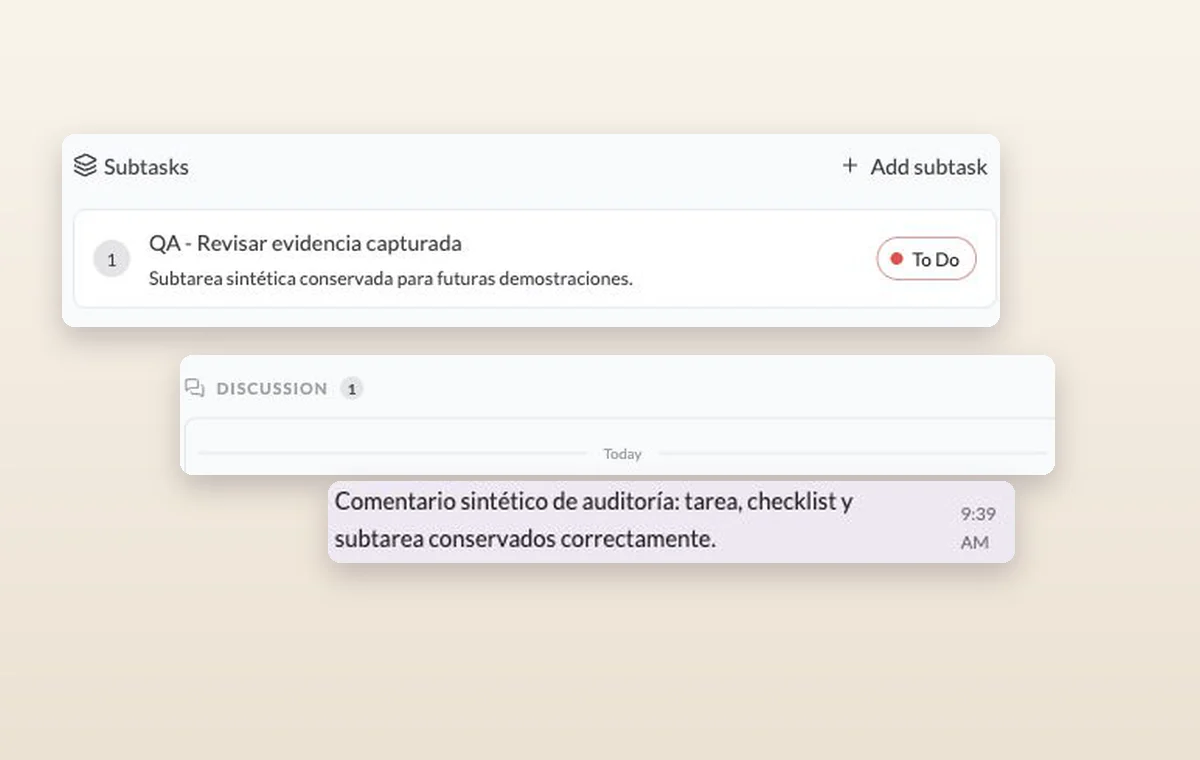
Create the follow-up task and identify the relevant customer contact.
Assign an owner, priority and date for the next update.
Record what resolved the issue, then reply to the customer through your usual support channel.
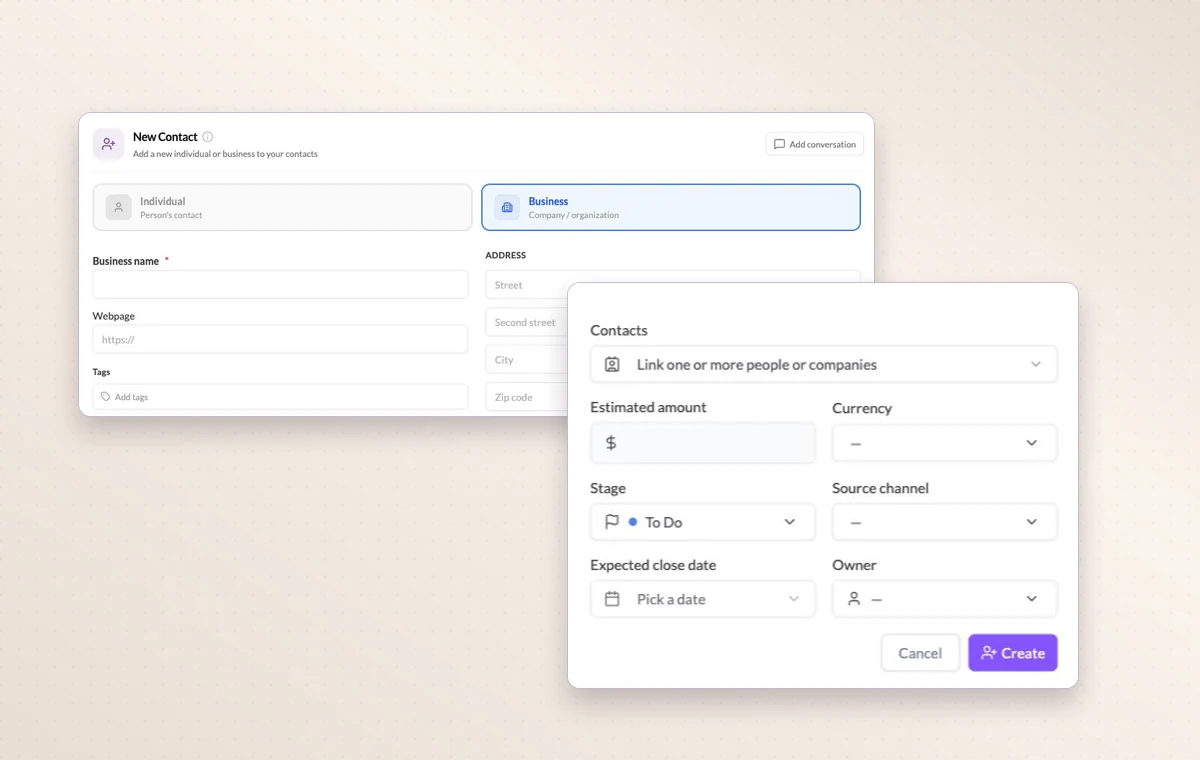
Link a contact to their company and record what matters in the notes. A teammate can take the next call knowing who they’re speaking with.
Assign the people responsible for the task. If the plan changes, the team knows who to speak to and which assignments to revisit.
Put a change request or decision in a task comment. The next person to open the task can read what was agreed before starting the revision.
This workflow tracks internal follow-up. The support owner communicates the resolution through the customer channel your team uses.
Open the project filters and choose the assignee. Review their active items, priorities and dates before assigning more work.
Start on the free plan. Invite your team when you’re ready.