GGyess / Solutions Who’s looking into the urgent request? A message lands in the team chat. Everyone assumes someone else replied. Turn the internal request into a GGyess task, set its priority and name the person who will see it through.
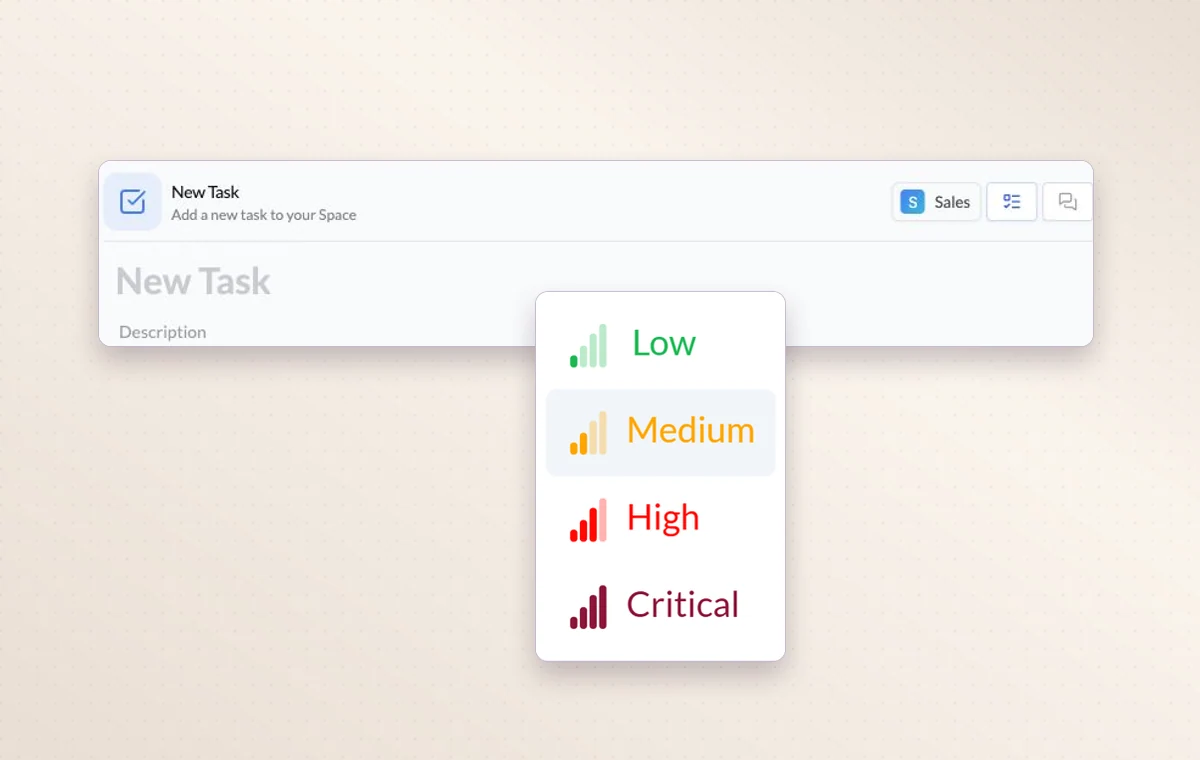
Choose from four priority levels when you create a task for an incoming request.
Give internal requests an owner and a queue 01 Create a task for the request with a clear description.
02 Choose the owner and priority, then move it into the right stage.
03 Record the resolution before closing the request.
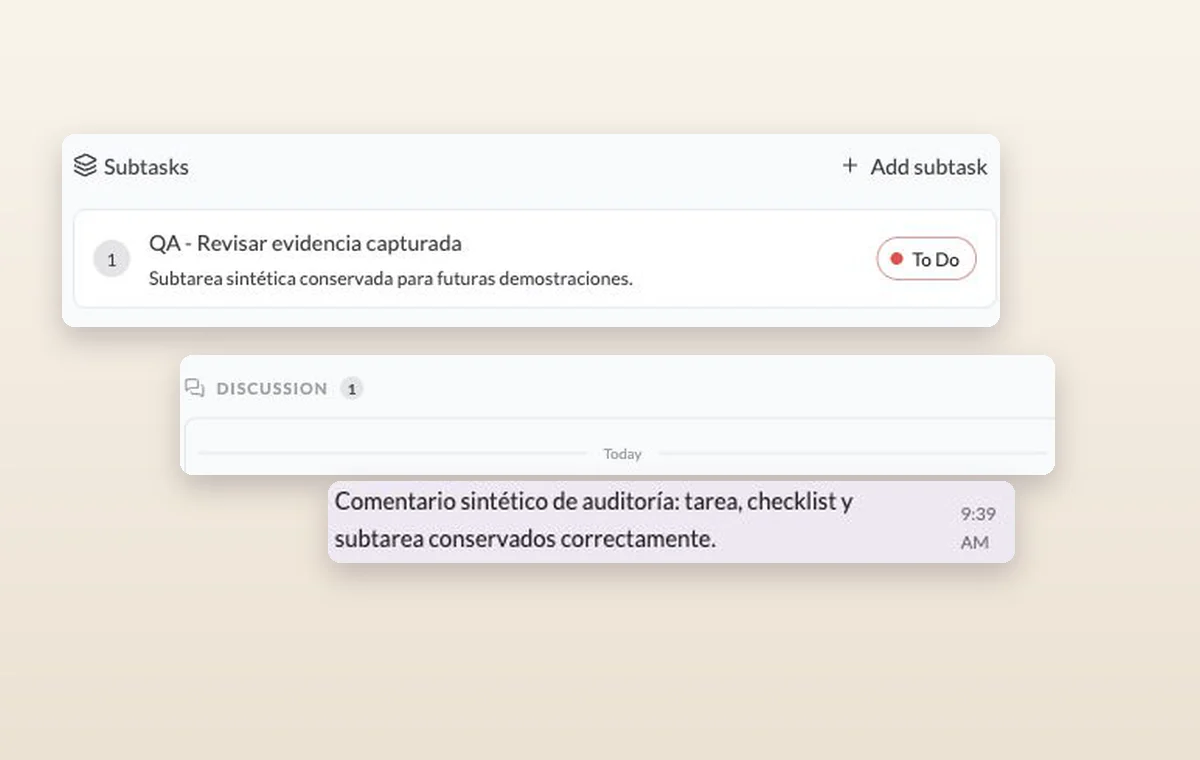
A subtask and an internal comment recorded in the discussion of its parent task.
In day-to-day work Give urgent work a place Use the four levels from Low to Critical. Filter by priority when the team needs to decide which deadline to tackle first.
Someone to turn to Assign the people responsible for the task. If the plan changes, the team knows who to speak to and which assignments to revisit.
A decision you can find again Put a change request or decision in a task comment. The next person to open the task can read what was agreed before starting the revision.
A few good questions. Is this the same as opening a support ticket with GGyess? This workflow uses your project tasks for requests inside your organization. For help with GGyess itself, use the product support channel.
Does priority replace a deadline? Priority describes importance. A due date tells the team when the work is expected. Set both when a delivery has a fixed commitment.
Give every open request someone to see it through. Start on the free plan. Invite your team when you’re ready.
Cookie settings × Strictly necessary Always on
The site remembers your choice for 180 days in this browser. You can browse every page with optional tools turned off.
Your browser is sending a Global Privacy Control signal. Optional tools stay off.
We remember your advertising opt-out in this browser for at least 12 months. You can change it here if you wish.
I confirm my new advertising choice Français (Québec) Português (Brasil) Privacy Cookie policy
Your browser could not save this choice. Optional tools stay off.
We could not confirm this choice. Optional tools are off. You can try again or continue browsing.
Reject all Save preferences