
The agreement in writing
Draft the wording in a text document. Use a page with blocks for a brief that brings instructions, decisions and deliverables together.
The meeting is over, but two people came away with different answers. Record the decision in a GGyess document and keep project instructions on a page the team can return to.
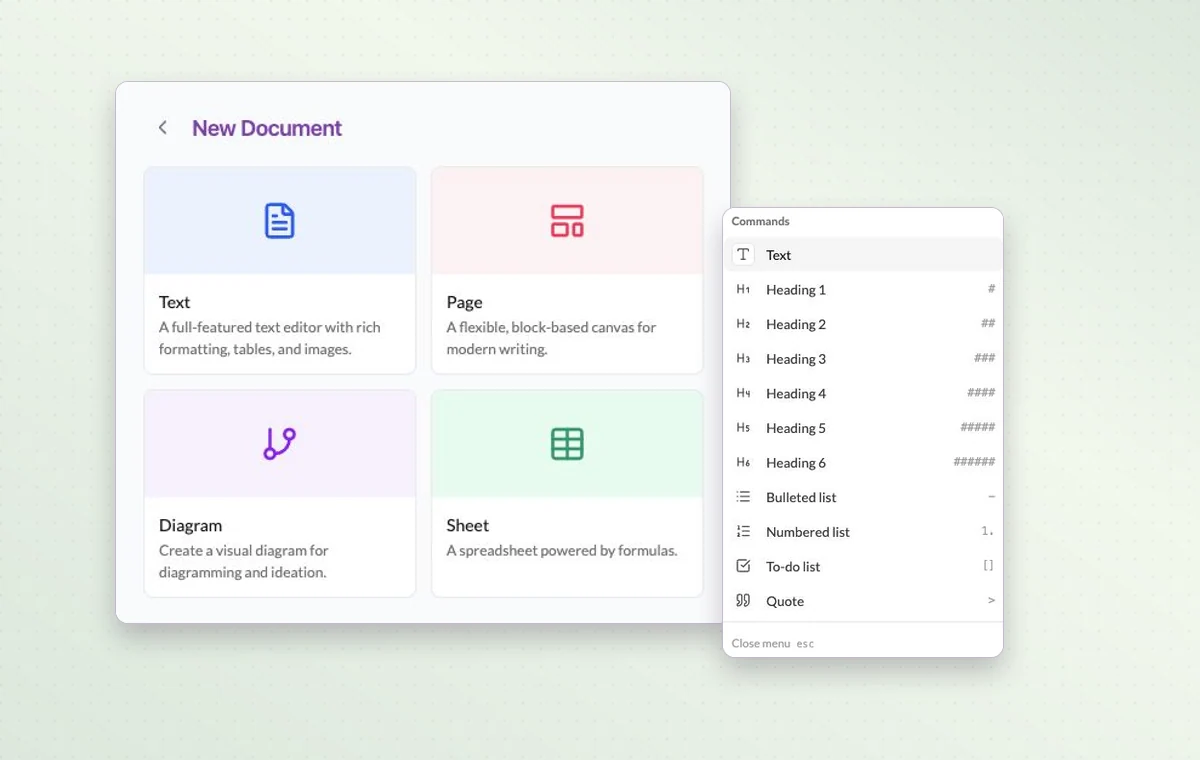
Choose the format that suits the job, such as a spreadsheet for costs or a page for instructions.
Create the document and name it for the decision or deliverable.
Update it as the project develops so the team has a reference.
Draft the wording in a text document. Use a page with blocks for a brief that brings instructions, decisions and deliverables together.
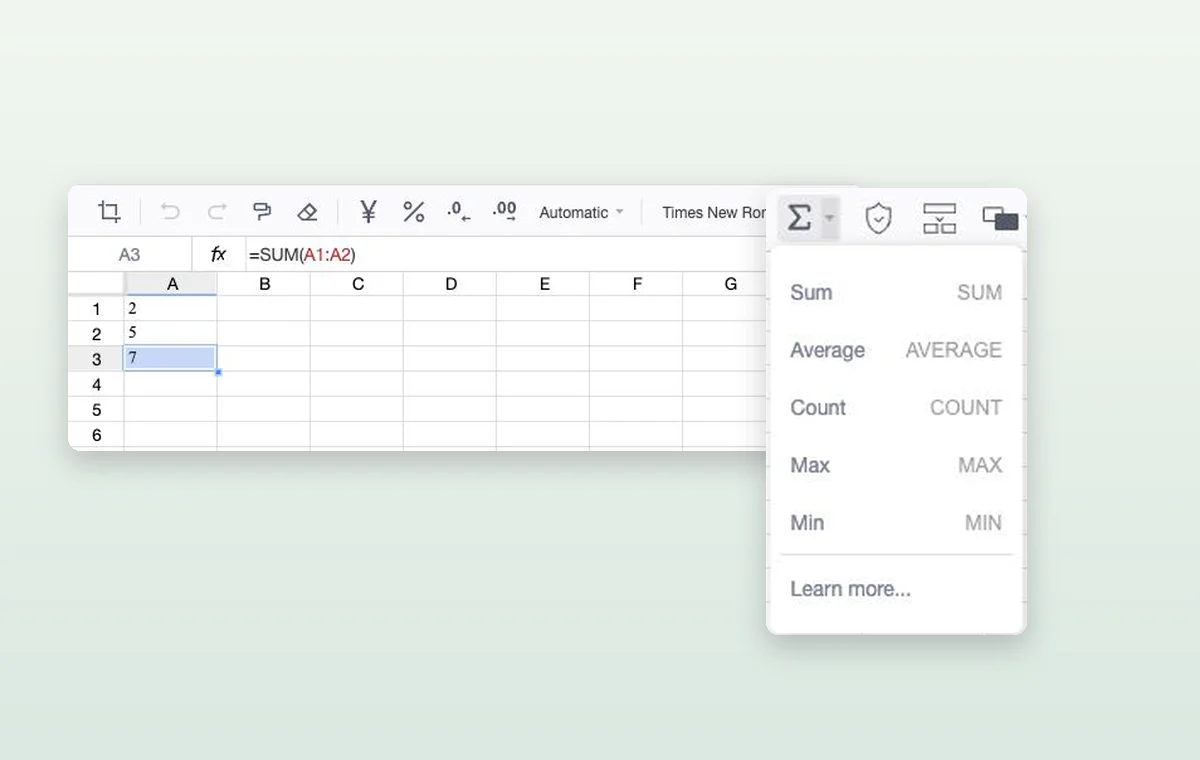
Keep expected amounts, assumptions and totals in a spreadsheet. When a figure comes up in a review, the team can return to the same numbers.
Draw the steps as shapes in a diagram and label them. Walk through the sequence with the team before you assign the work.
Choose a Sheet document for cells and formulas such as SUM. Use Text or Page for narrative material.
A file is uploaded material such as an image or a PDF. A native document is created in an editor, for example Text, Page, Sheet or Diagram.
Start on the free plan. Invite your team when you’re ready.