GGyess / Features Give the next person the decision they need. A conversation can end with two people in agreement and everyone else still waiting. Discuss the question in your project chat, then record the decision on the task it affects.
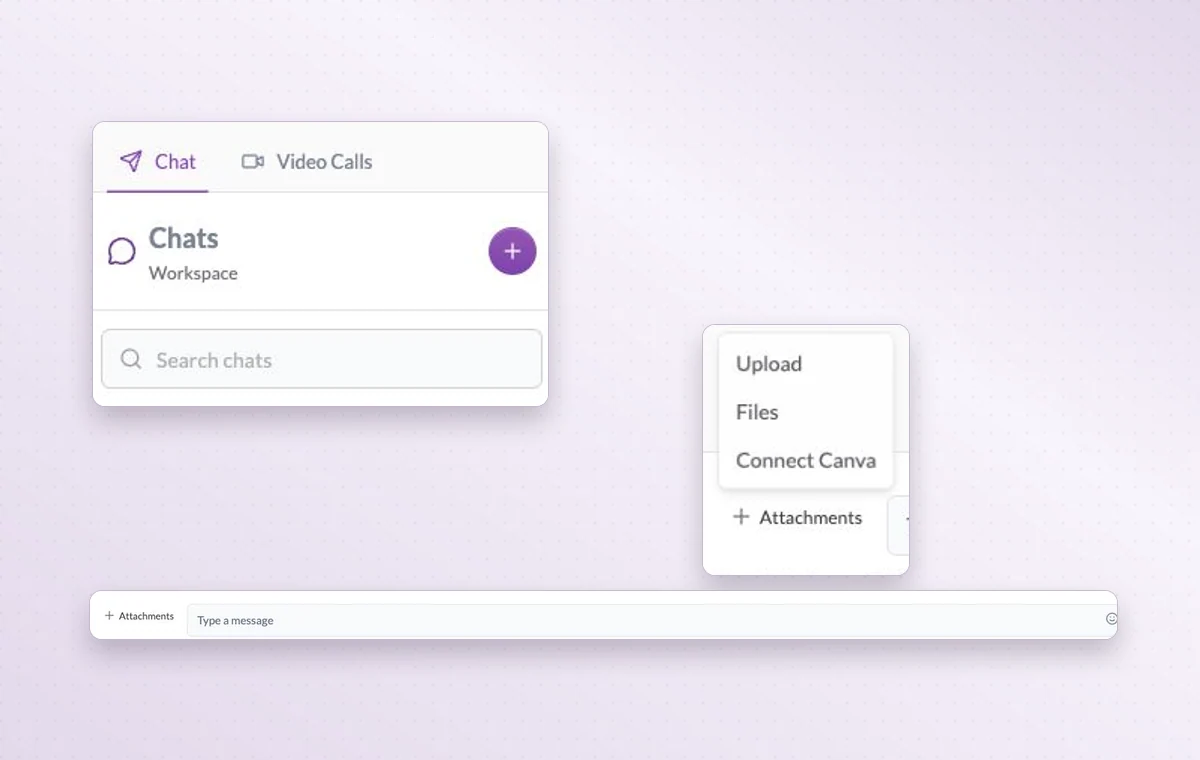
Search for the conversation in Chats and attach a file when a picture or document explains the question better.
Move a conversation toward its next action 01 Decide whether the question needs a direct or project conversation.
02 Share context or set up a meeting to resolve the question.
03 Give the agreed action a task and an owner.
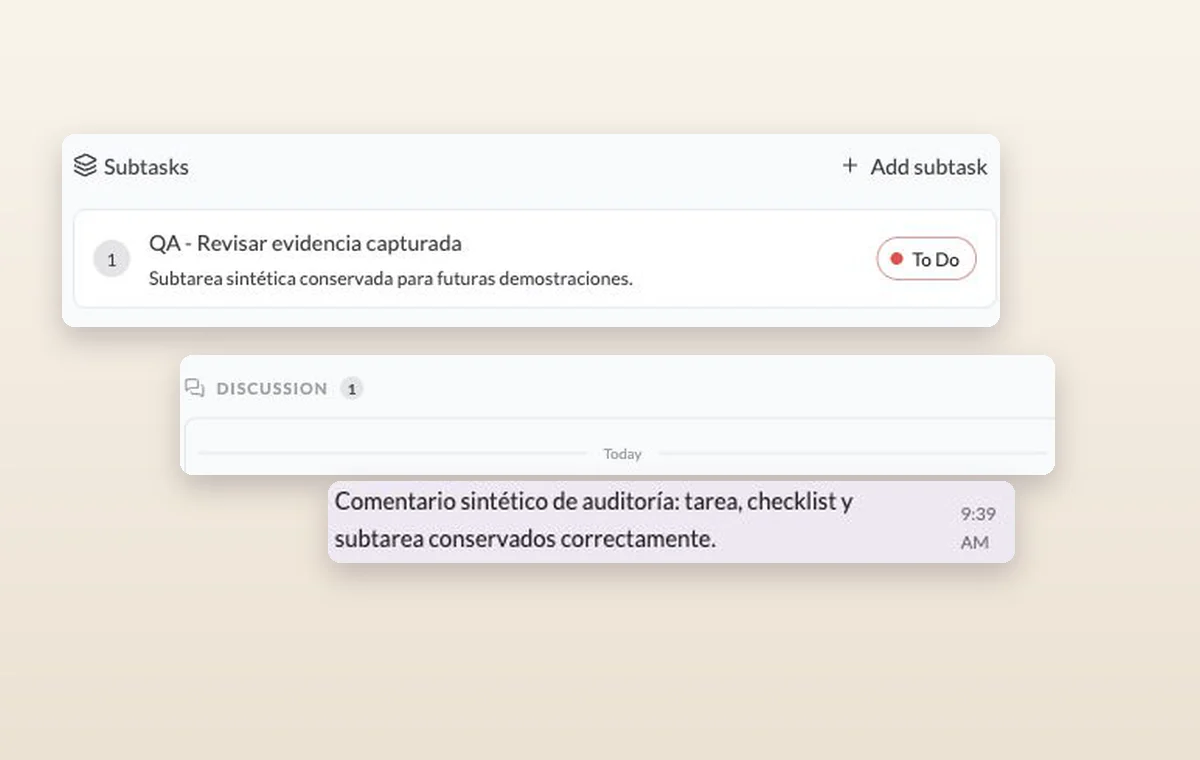
A subtask and an internal comment recorded in the discussion of its parent task.
In day-to-day work From a question to a decision Ask a teammate directly or open the conversation in the project chat. Once you agree on the next step, leave it on the task for whoever picks it up.
A time set aside Set a date and duration and add the contacts taking part. You can find the appointment again on the calendar when planning the week.
A decision you can find again Put a change request or decision in a task comment. The next person to open the task can read what was agreed before starting the revision.
A few good questions. How do we keep a decision easy to find? Summarize it on the task or in a project document. The next person can read the outcome where they need to act on it.
Can I include a file in a chat? The attachment menu offers an upload and a file picker. Choose the relevant source and check the intended conversation before sending.
Keep a good conversation from becoming a loose end. Start on the free plan. Invite your team when you’re ready.
Cookie settings × Strictly necessary Always on
The site remembers your choice for 180 days in this browser. You can browse every page with optional tools turned off.
Your browser is sending a Global Privacy Control signal. Optional tools stay off.
We remember your advertising opt-out in this browser for at least 12 months. You can change it here if you wish.
I confirm my new advertising choice Français (Québec) Português (Brasil) Privacy Cookie policy
Your browser could not save this choice. Optional tools stay off.
We could not confirm this choice. Optional tools are off. You can try again or continue browsing.
Reject all Save preferences