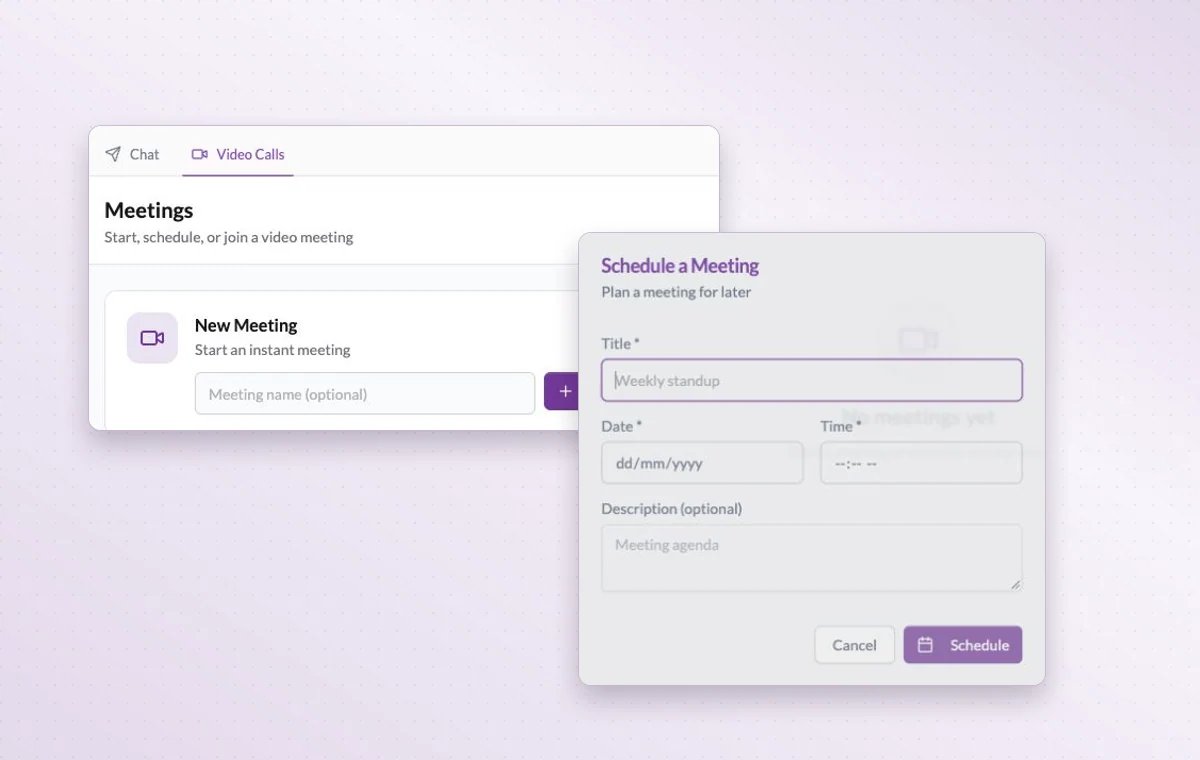
When several messages still leave the question open, bring together the people who can settle it. Start a video call in GGyess or schedule one with the decision you need on the agenda.
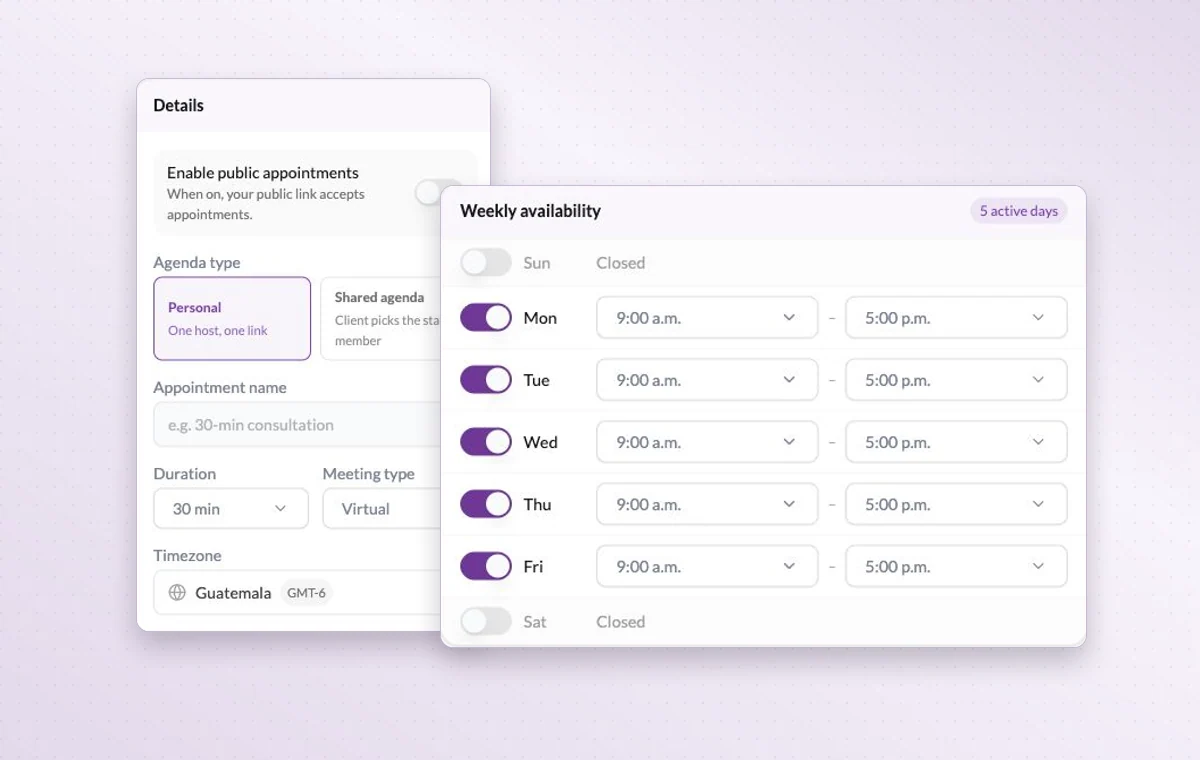
Appointment settings with personal and shared agendas and weekly availability.
Video meetings
In day-to-day work
A time set aside
Set a date and duration and add the contacts taking part. You can find the appointment again on the calendar when planning the week.
From a question to a decision
Ask a teammate directly or open the conversation in the project chat. Once you agree on the next step, leave it on the task for whoever picks it up.
The agreement in writing
Draft the wording in a text document. Use a page with blocks for a brief that brings instructions, decisions and deliverables together.
Before you start
A few good questions.
How many people can join a call?
Participant limits, meeting duration and available meeting hours vary by workspace plan. Check your plan before arranging a larger session.
Can I bring in an external calendar?
GGyess offers Google Calendar and Microsoft Calendar connections. Your account connection, selected spaces and sync settings determine what is included.
With your permission, we use Google Analytics to see which pages people visit and whether they click the registration buttons. Google Ads measures visits from ads. With separate permission, Google Signals can associate this visit with a signed-in Google account for aggregate reports. With your permission, Microsoft Clarity may record clicks and scrolling to replay your visit.Cookie policy.