GGyess
Team invitations

Make someone’s first day easier.

A new teammate often has to ask around just to get started. Send their workspace invitation by email, then add them to the project with a clear first task once they join.

Inside GGyessEnlarge screenshot
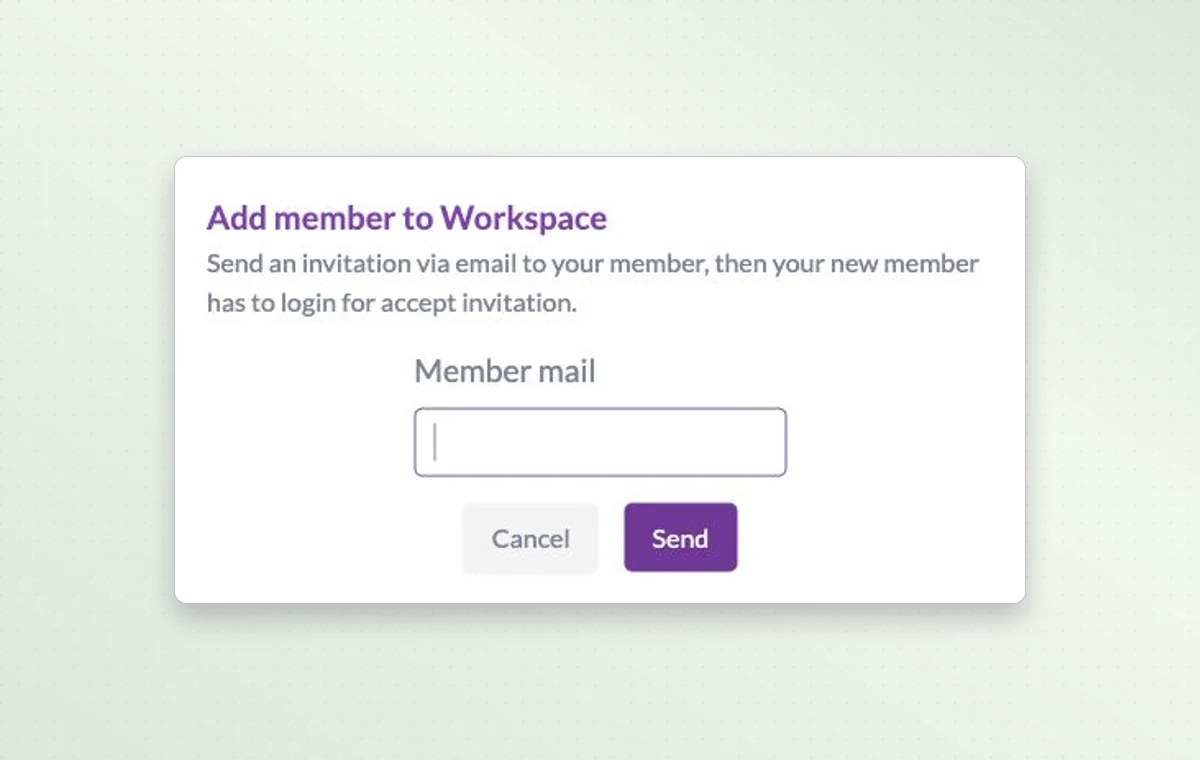
The workspace invitation form with an email field.
Enter your colleague’s email in the workspace invitation form to send the invitation.
Step by step

Invite a collaborator with a purpose

  1. Open the workspace member area and choose Invite.

  2. Enter your colleague’s email address and send the invitation.

  3. After they join, add them to the relevant project.

Inside GGyessEnlarge screenshot
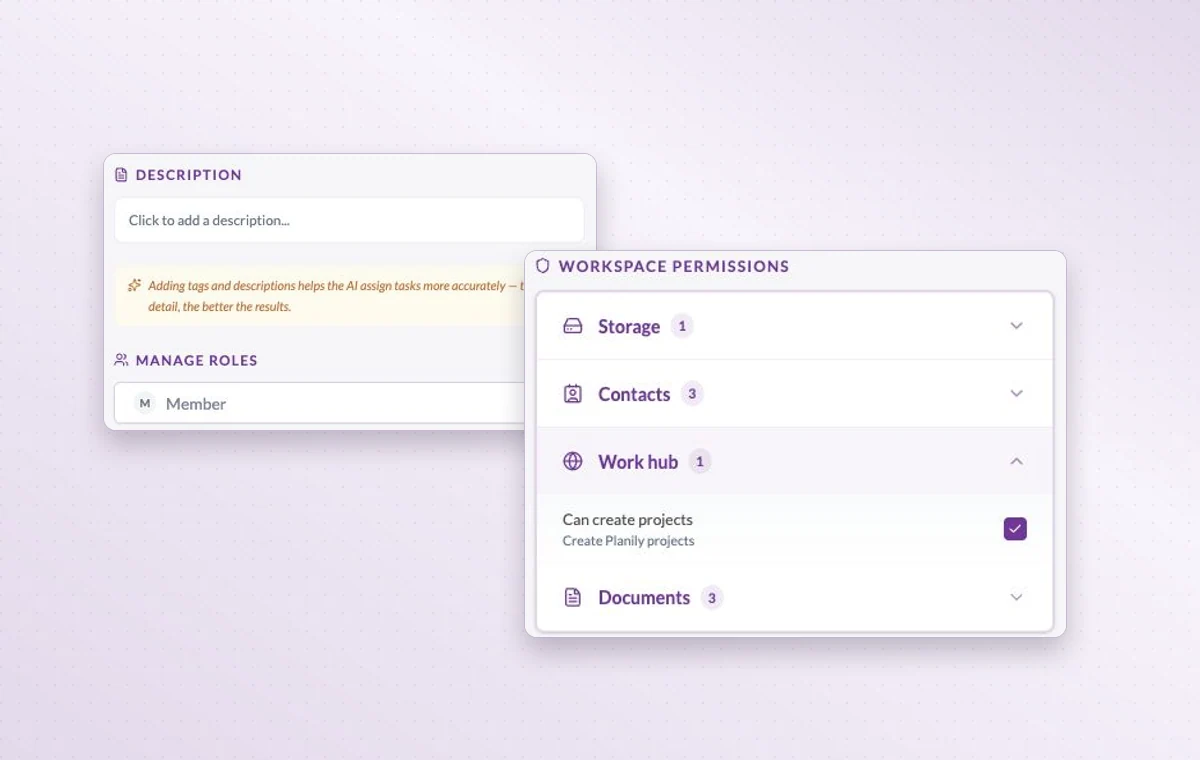
Member role settings and the workspace permissions for storage, contacts, Work Hub and documents.
Team invitations

In day-to-day work

The people on this project

Choose the workspace members who will work on this project. You can look at the project membership when you need to know who’s involved.

The right access for the job

When someone joins, review their access to the workspace and project, including their permissions for tasks, documents and files.

A home for each project

Name the project, describe the outcome and set its working days. The team can add its tasks there as the work takes shape.

Before you start

A few good questions.

What should I prepare before inviting someone?

Identify the workspace, project and access level they need. A first task with a clear owner gives them a useful starting point.

Where do I check project-specific access?

Open the member’s project permissions and inspect the relevant area, such as tasks, files or documents.

GGyess WorkSuite

Give your next teammate a clear first step.

Start on the free plan. Invite your team when you’re ready.

GGyess screenshot