GGyess
Work filters

Which of these tasks are due this week?

Reading every row is a slow way to answer a simple question. Combine date, status and assignee filters in GGyess to narrow the list to the work you need to review.

Inside GGyessEnlarge screenshot
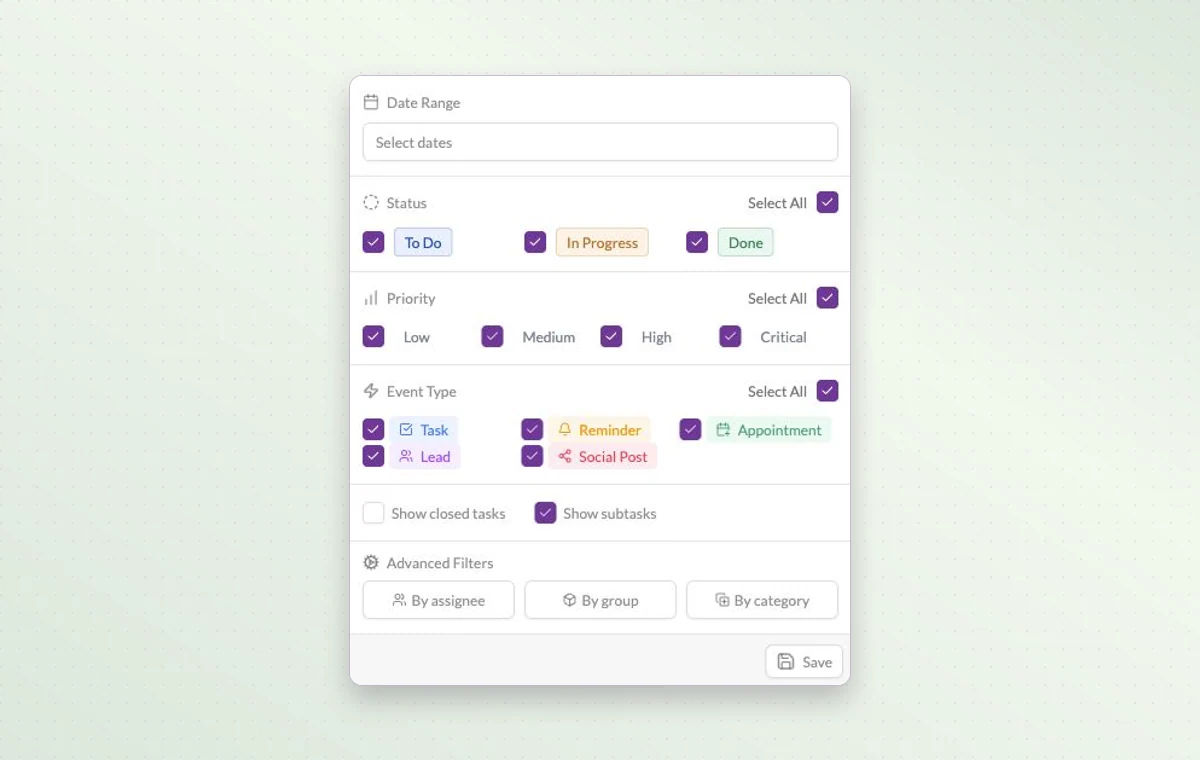
Work Hub filters for date, status, priority, activity type, assignee and group.
Filter by date range, status or priority. Advanced filters include assignee, group and category.
Step by step

Find the activities that need a decision

  1. Open Filter by in the project view.

  2. Choose the date range, priority or owner you want to review.

  3. Clear the filter when you want the full project in view again.

Inside GGyessEnlarge screenshot
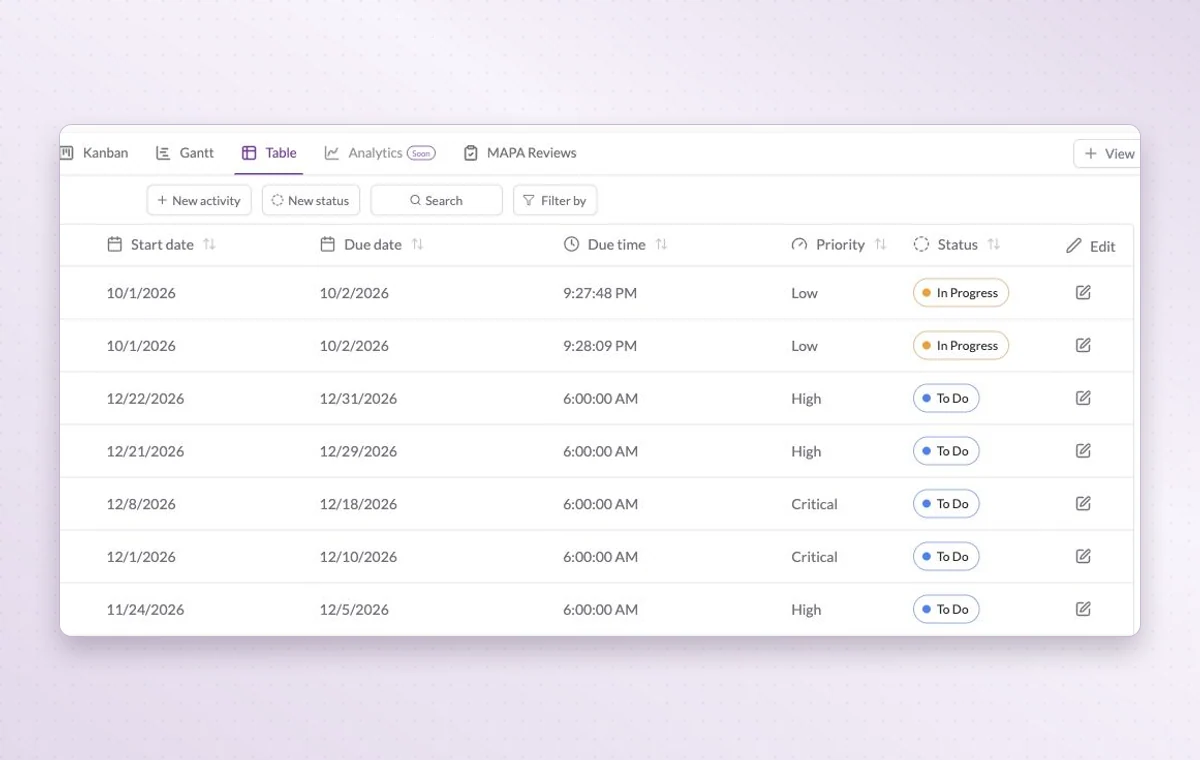
Work Hub table showing dates, priorities and statuses in columns.
Work filters

In day-to-day work

Answer a specific question

Need to know what’s still open this week? Narrow the view by date and status, then add a priority or assignee if you need a shorter list.

Give urgent work a place

Use the four levels from Low to Critical. Filter by priority when the team needs to decide which deadline to tackle first.

Open the next task

Choose a task in the list to read the instructions, check the remaining steps and update its status when it’s ready.

Before you start

A few good questions.

Can I look at tasks separately from appointments?

Yes. The event type filter lets you select tasks, appointments, reminders and other activity types.

When would I choose the table over Kanban?

Choose the table to compare details across items. Choose Kanban when the question is how much work sits in each stage.

GGyess WorkSuite

Find the tasks that need your attention.

Start on the free plan. Invite your team when you’re ready.

GGyess screenshot