GGyess
Table view

Compare deadlines without opening every task.

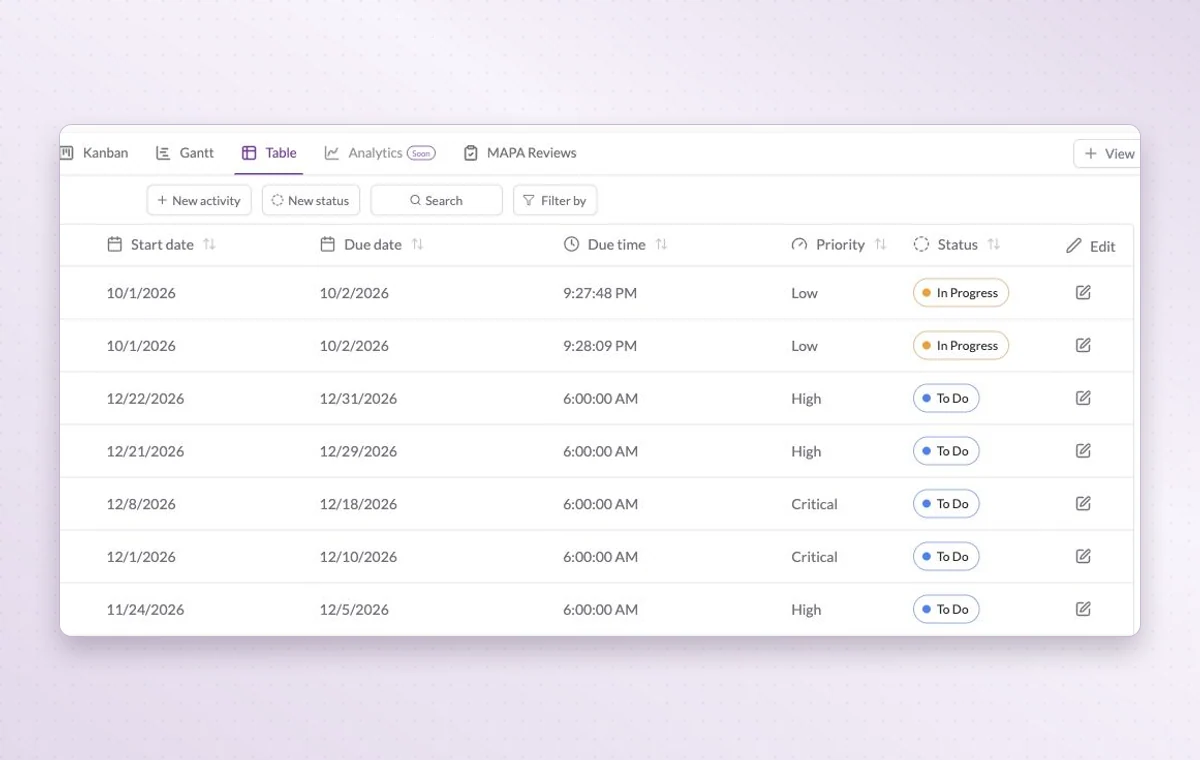
Before you take on another request, you need to know what’s due and what’s still open. The GGyess table puts dates, priorities and statuses in columns so you can compare deliveries side by side.

Inside GGyessEnlarge screenshot
Work Hub table showing dates, priorities and statuses in columns.
Read across a row to compare one activity’s dates, priority and status.
Step by step

Compare project work row by row

  1. Open the table in the project you are reviewing.

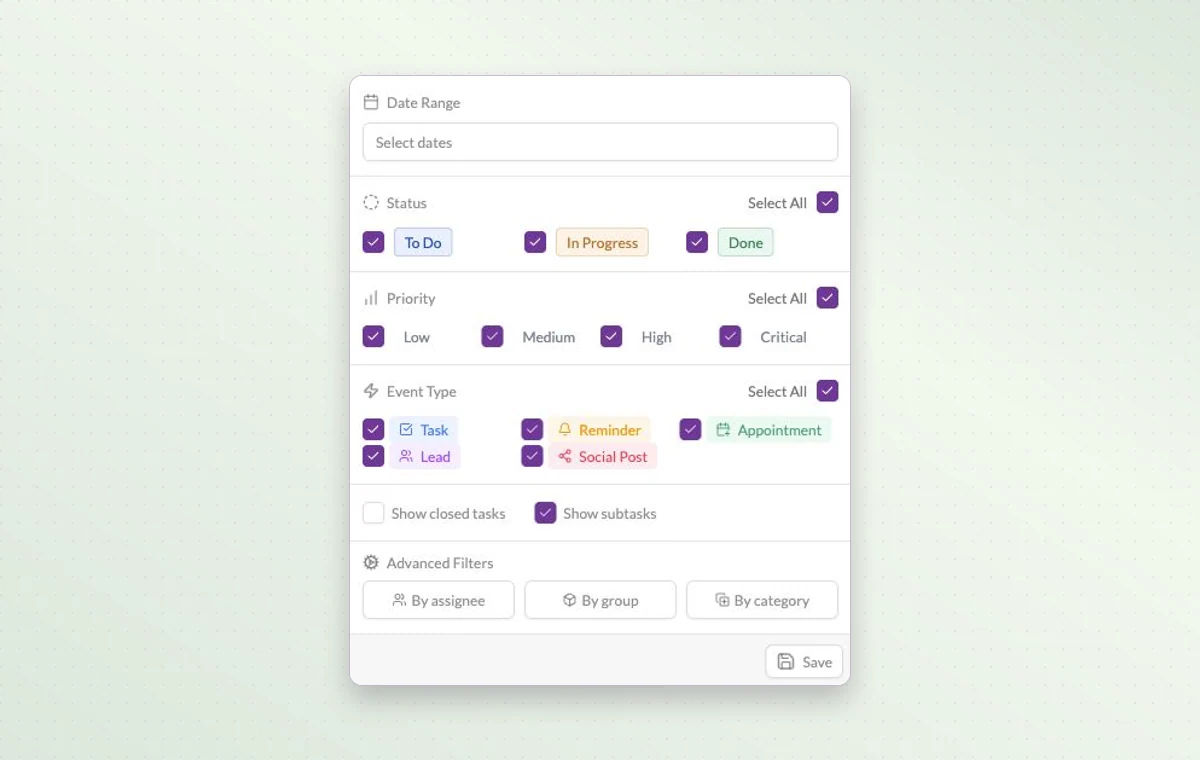
  2. Narrow it to the relevant dates or activities.

  3. Open the row that needs an owner, a date or a decision.

Inside GGyessEnlarge screenshot
Work Hub filters for date, status, priority, activity type, assignee and group.
Table view

In day-to-day work

Details side by side

Read titles, dates and statuses across the table to see which items share a deadline and how far along they are.

Put the next deadline first

Sort by due date when time matters, by priority or status for a review, or by name and creation date when looking for a particular item.

Answer a specific question

Need to know what’s still open this week? Narrow the view by date and status, then add a priority or assignee if you need a shorter list.

Before you start

A few good questions.

When would I choose the table over Kanban?

Choose the table to compare details across items. Choose Kanban when the question is how much work sits in each stage.

Do I need to create the same task in every view?

No. Views organize the activities in the selected project. Dates and statuses determine where the work appears.

GGyess WorkSuite

Make the call with the details in front of you.

Start on the free plan. Invite your team when you’re ready.

GGyess screenshot