GGyess
Task comments

Keep the requested change with the task.

“Change the headline” sounds clear until someone opens a different version. Comment on the task under review, name the change and leave the decision there for the person preparing the delivery.

Inside GGyessEnlarge screenshot
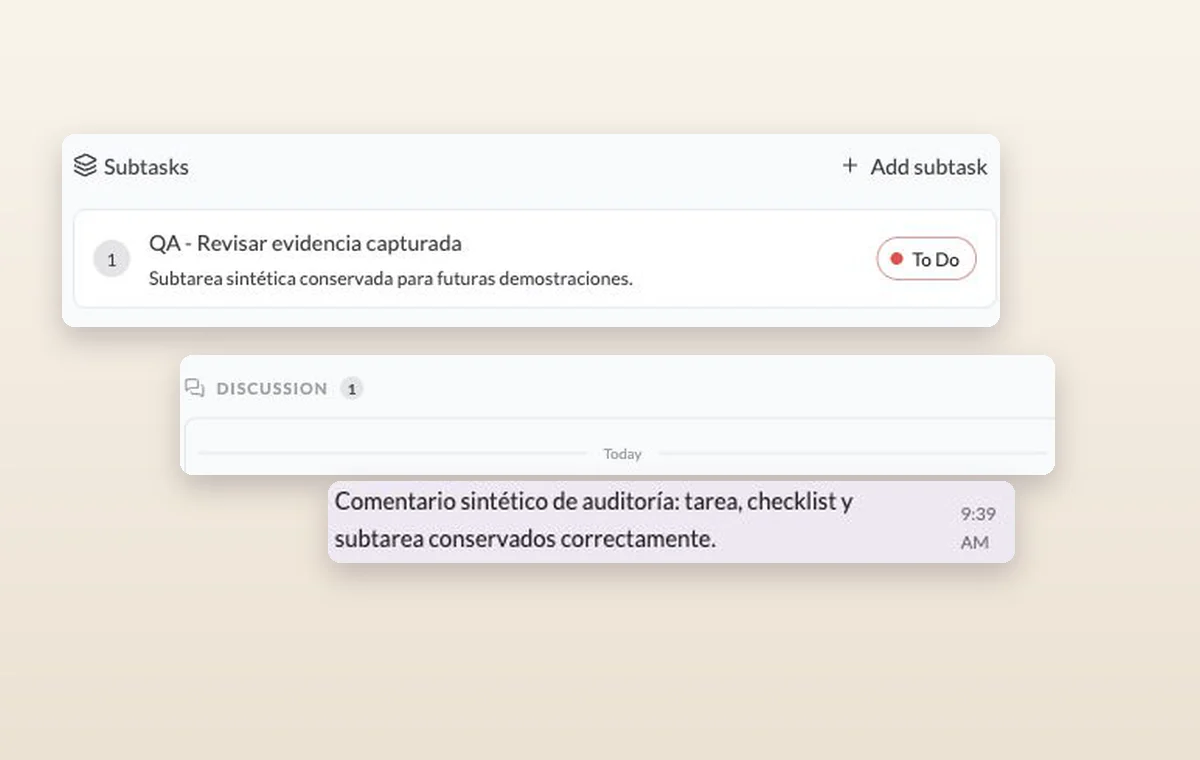
A subtask and an internal comment recorded in the discussion of its parent task.
The task discussion keeps the comment alongside the work it refers to.
Step by step

Leave feedback on the thing being reviewed

  1. Open the task for the deliverable.

  2. Describe the change and what a successful revision would look like.

  3. Reply with the decision after reviewing the update.

Inside GGyessEnlarge screenshot
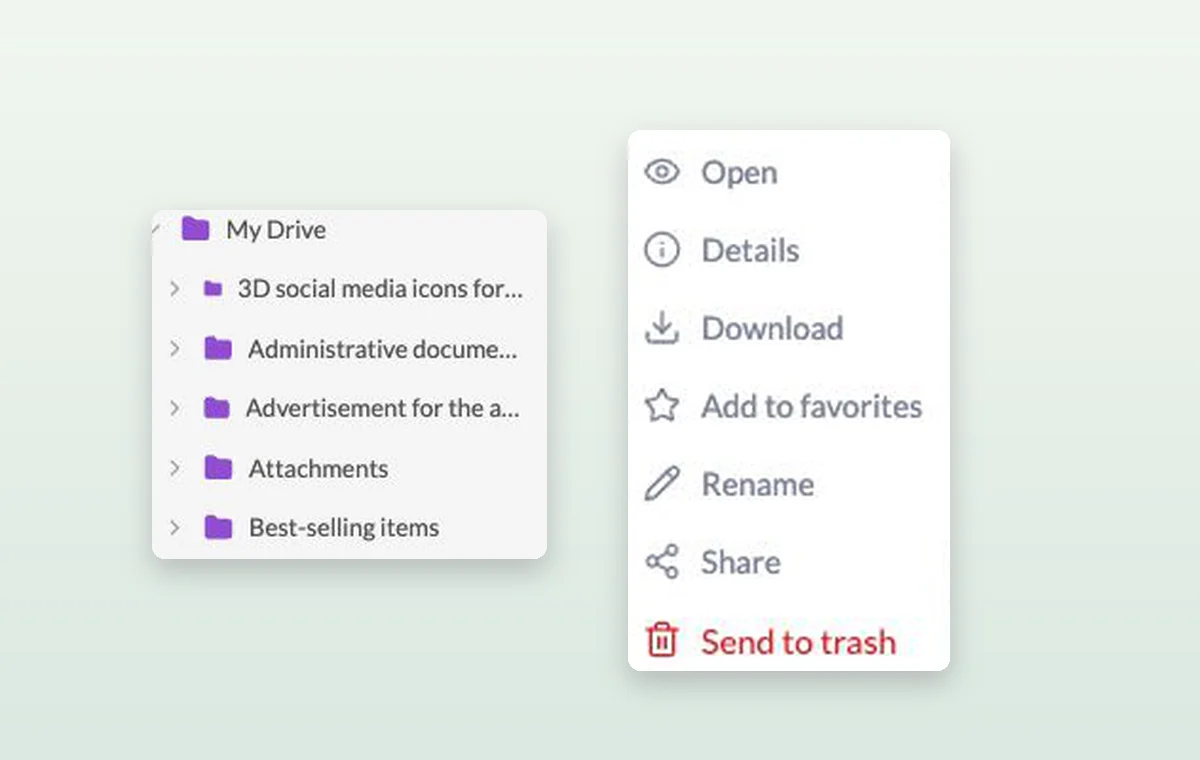
The folder tree and file menu with options to open, rename, share or download a file.
Task comments

In day-to-day work

A decision you can find again

Put a change request or decision in a task comment. The next person to open the task can read what was agreed before starting the revision.

Retrace a change

If a task looks different from the last time you saw it, open its history and read through the changes recorded there.

The file that goes with the task

Keep source files in storage and attach the relevant one to the task. The person starting work can open it with the instructions.

Before you start

A few good questions.

How are comments different from task history?

Comments capture what teammates say about the work. The history records changes to the item, such as a title update.

Should I use a checklist or a subtask?

Use a checklist for small checks inside a task. Create a subtask when a piece of work needs its own status and detail.

GGyess WorkSuite

Start the next review with the last decision in view.

Start on the free plan. Invite your team when you’re ready.

GGyess screenshot