GGyess / Solutions Which version did we approve? The piece goes out today and two files have different edits. Attach the draft to a GGyess task, name its reviewer and ask them to record their decision where the team can find it.
See how many pieces are in review in the content project. Attach the version to its task and record the decision in the discussion.
Set up the review for one draft 01 Set project stages for Draft, In review and Approved.
02 Attach the draft and assign the task to the person who will review it.
03 Record the decision in a comment and update the stage.
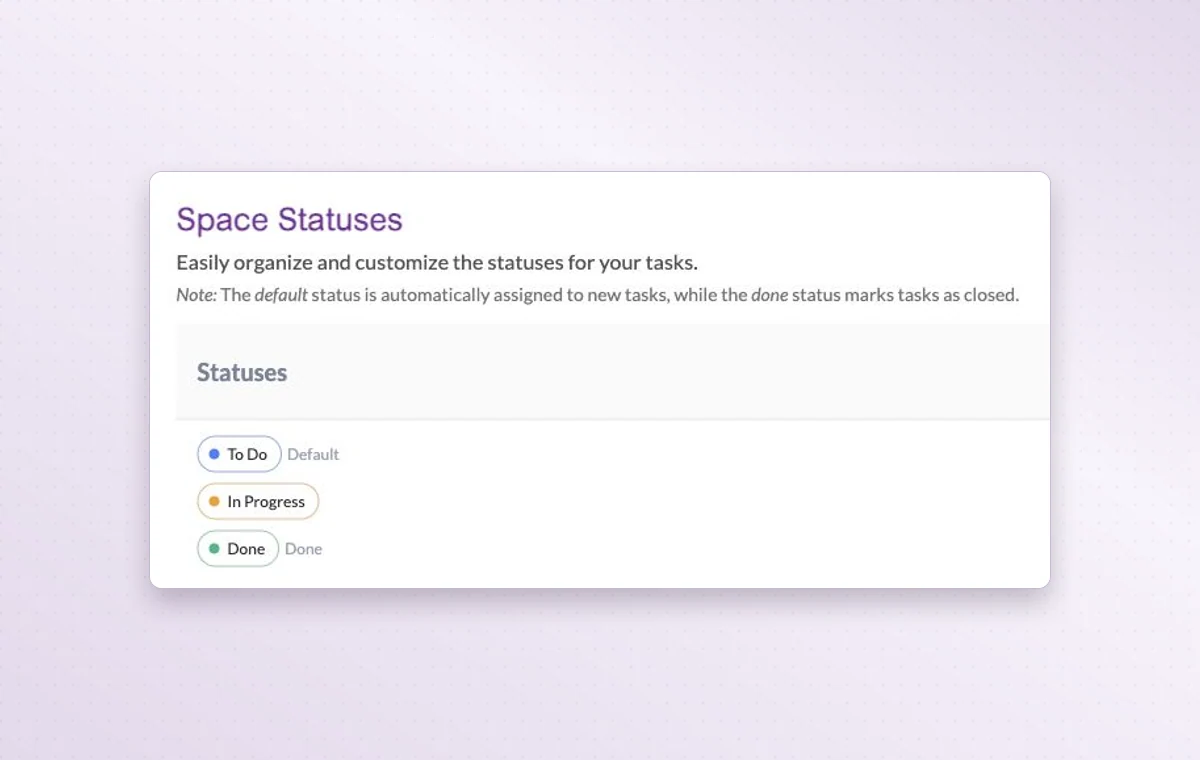
Space status settings show the defaults To Do, In Progress and Done.
In day-to-day work The stages your team uses Use project statuses that match the handoff. For example, “In review” tells the team a draft is ready for someone to read.
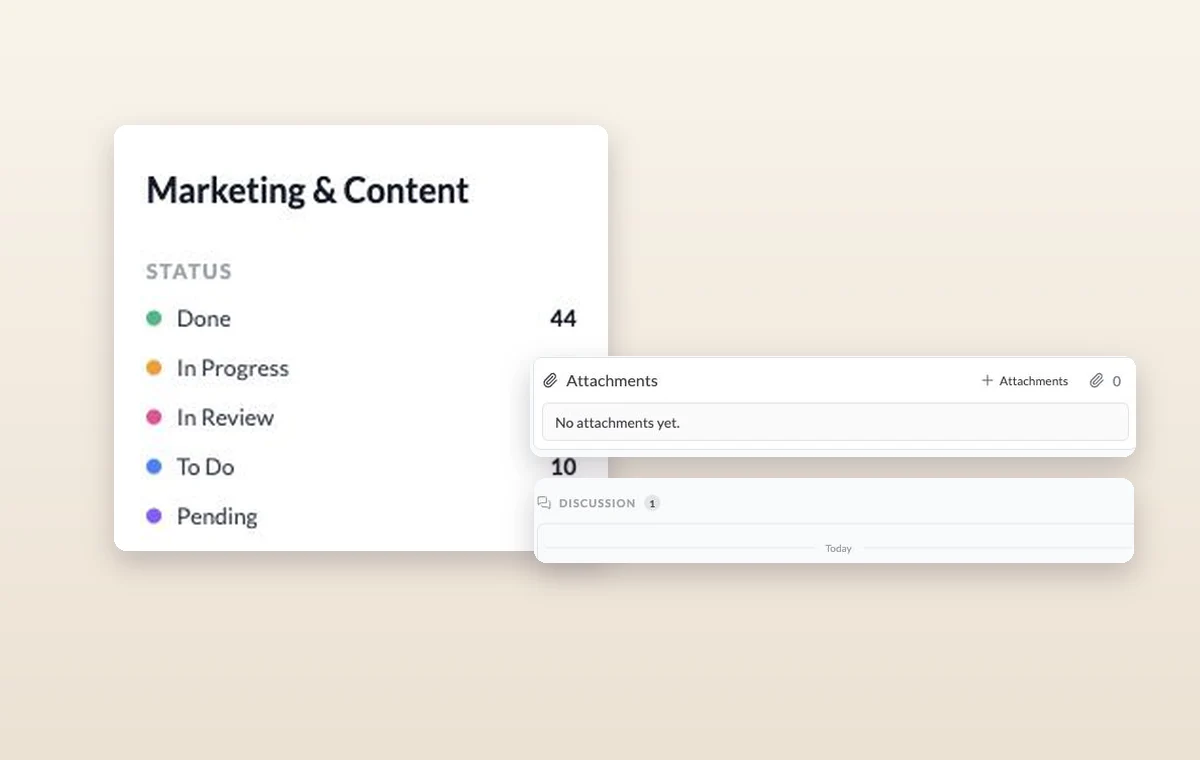
A decision you can find again Put a change request or decision in a task comment. The next person to open the task can read what was agreed before starting the revision.
The file that goes with the task Keep source files in storage and attach the relevant one to the task. The person starting work can open it with the instructions.
A few good questions. How is an approval recorded? Agree on who can approve the work. That person records their decision in a task comment and updates the status.
How are comments different from task history? Comments capture what teammates say about the work. The history records changes to the item, such as a title update.
Know which draft has the go-ahead before you publish. Start on the free plan. Invite your team when you’re ready.
Cookie settings × Strictly necessary Always on
The site remembers your choice for 180 days in this browser. You can browse every page with optional tools turned off.
Your browser is sending a Global Privacy Control signal. Optional tools stay off.
We remember your advertising opt-out in this browser for at least 12 months. You can change it here if you wish.
I confirm my new advertising choice Français (Québec) Português (Brasil) Privacy Cookie policy
Your browser could not save this choice. Optional tools stay off.
We could not confirm this choice. Optional tools are off. You can try again or continue browsing.
Reject all Save preferences