Two deliveries sound manageable until you realize they’re due on the same day. Check the GGyess calendar for overlaps before agreeing to a date your team will have to keep.
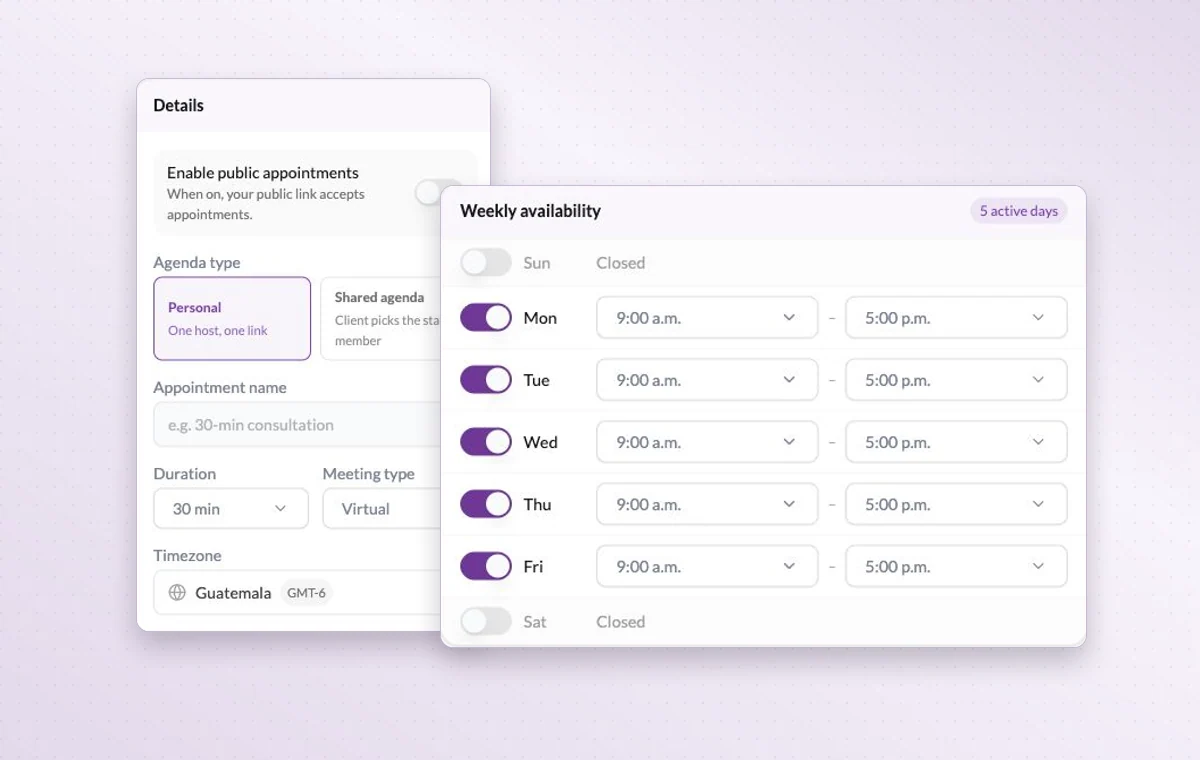
Appointment settings with personal and shared agendas and weekly availability.
Project calendar
In day-to-day work
Make room for the next deadline
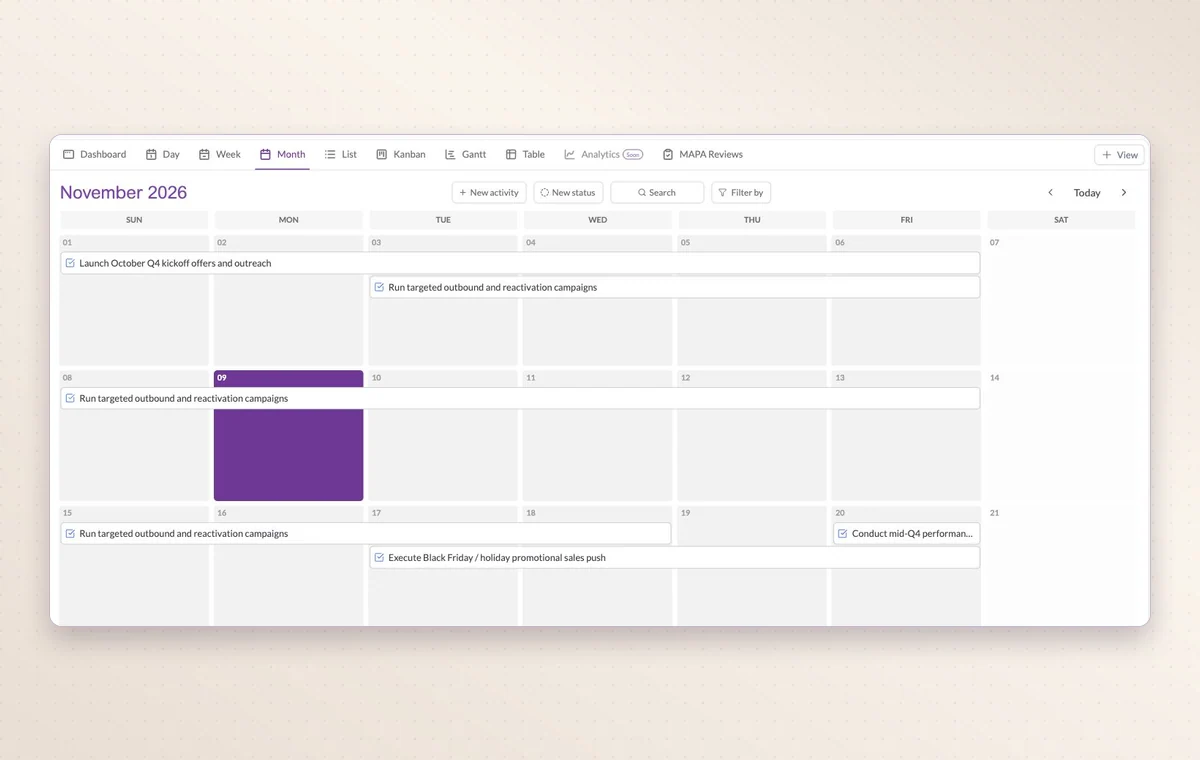
Look at one day, the week or the whole month to see which appointments already share the calendar with your deliveries.
A time set aside
Set a date and duration and add the contacts taking part. You can find the appointment again on the calendar when planning the week.
A start and a deadline
Set both dates on the task. The person doing the work can plan a start and the person waiting for it knows when it’s due.
Before you start
A few good questions.
Can I bring in an external calendar?
GGyess offers Google Calendar and Microsoft Calendar connections. Your account connection, selected spaces and sync settings determine what is included.
What belongs in My Agenda?
Use it for personal work such as preparing notes or following up. Put a shared deliverable in the relevant project where its team can coordinate it.
With your permission, we use Google Analytics to see which pages people visit and whether they click the registration buttons. Google Ads measures visits from ads. With separate permission, Google Signals can associate this visit with a signed-in Google account for aggregate reports. With your permission, Microsoft Clarity may record clicks and scrolling to replay your visit.Cookie policy.