Returning a call or preparing a few notes only takes a moment. Remembering between meetings is the hard part. Add a dated task or reminder to My Agenda so you can come back to it.
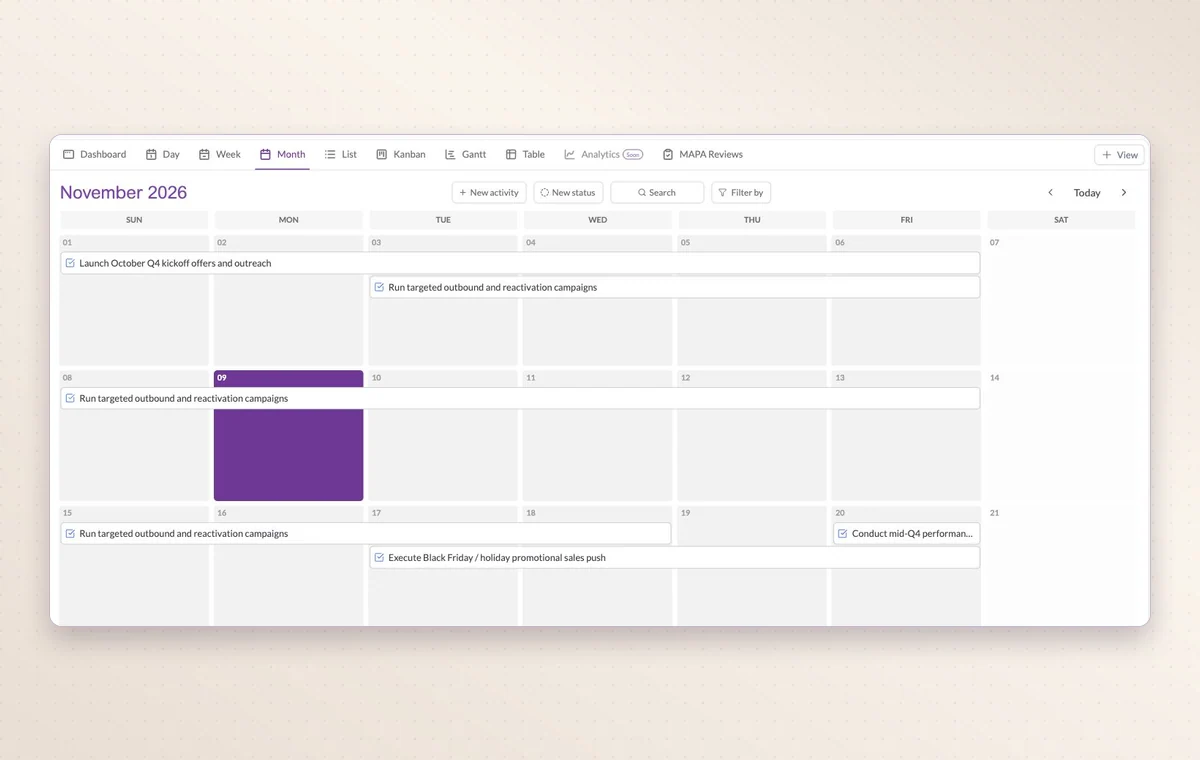
Month view in Work Hub with scheduled activities spanning several days.
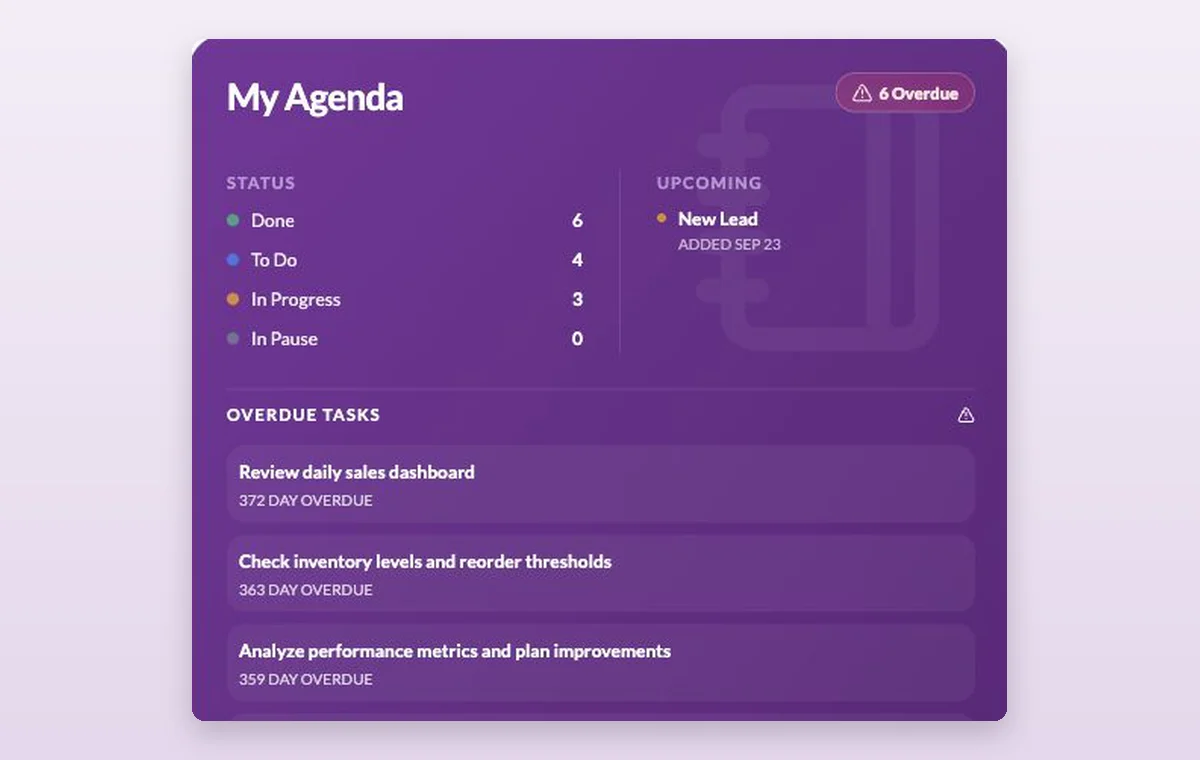
My Agenda
In day-to-day work
Keep track of your own day
Use My Agenda for personal activities. Tasks the team needs to follow can stay in the shared project.
Open the next task
Choose a task in the list to read the instructions, check the remaining steps and update its status when it’s ready.
Remember the follow-up
Set a reminder when you promise to check back, or add one to a task with a deadline. You have a place for the next step while the conversation is still fresh.
Before you start
A few good questions.
What belongs in My Agenda?
Use it for personal work such as preparing notes or following up. Put a shared deliverable in the relevant project where its team can coordinate it.
Can I bring in an external calendar?
GGyess offers Google Calendar and Microsoft Calendar connections. Your account connection, selected spaces and sync settings determine what is included.
With your permission, we use Google Analytics to see which pages people visit and whether they click the registration buttons. Google Ads measures visits from ads. With separate permission, Google Signals can associate this visit with a signed-in Google account for aggregate reports. With your permission, Microsoft Clarity may record clicks and scrolling to replay your visit.Cookie policy.