GGyess
Project views

One project. Five ways to see it.

To plan a handoff, you need to see what’s in progress. To promise a date, you need a calendar. Switch views in GGyess to answer both questions with the same tasks.

Inside GGyessEnlarge screenshot
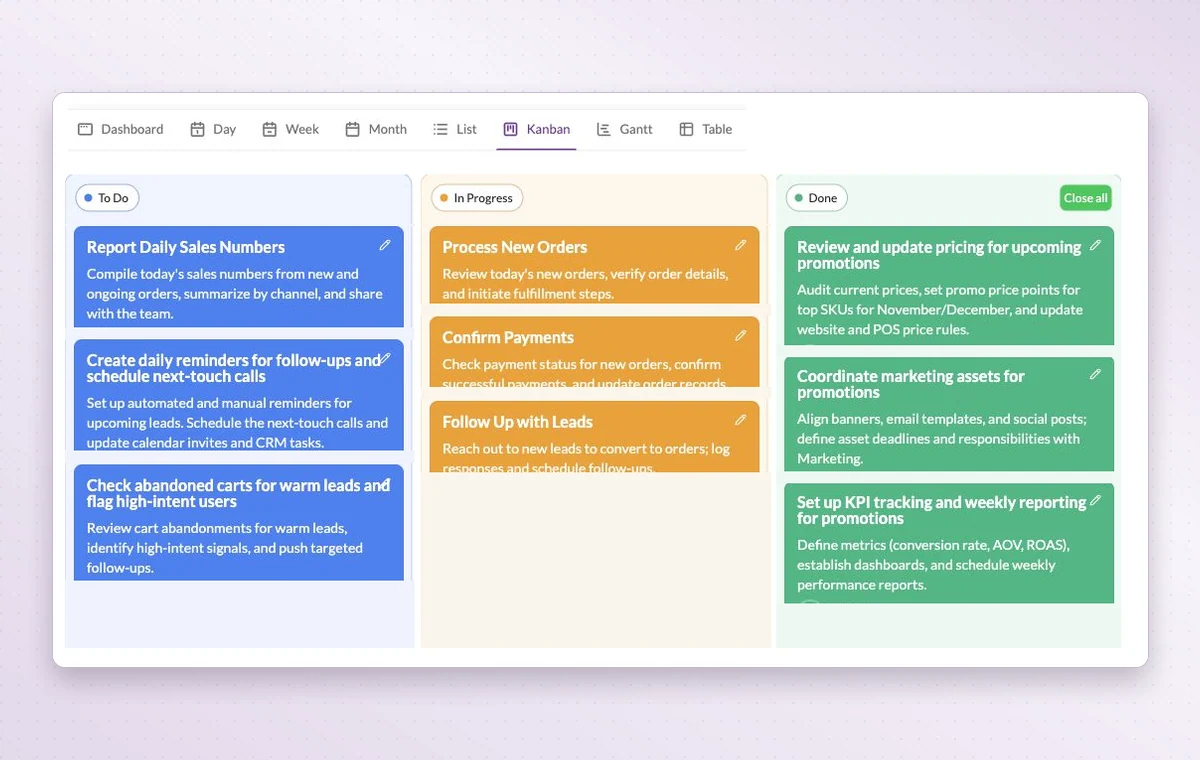
GGyess Kanban board with tasks grouped into To Do, In Progress and Done.
The board groups tasks by status. Use the view bar above it to switch to a list, calendar, table or Gantt chart.
Step by step

See the same project from five angles

  1. Open a project and choose its view menu.

  2. Use the list for daily work and Kanban for the team review.

  3. Check the dates on the calendar or Gantt before moving a deadline.

Inside GGyessEnlarge screenshot
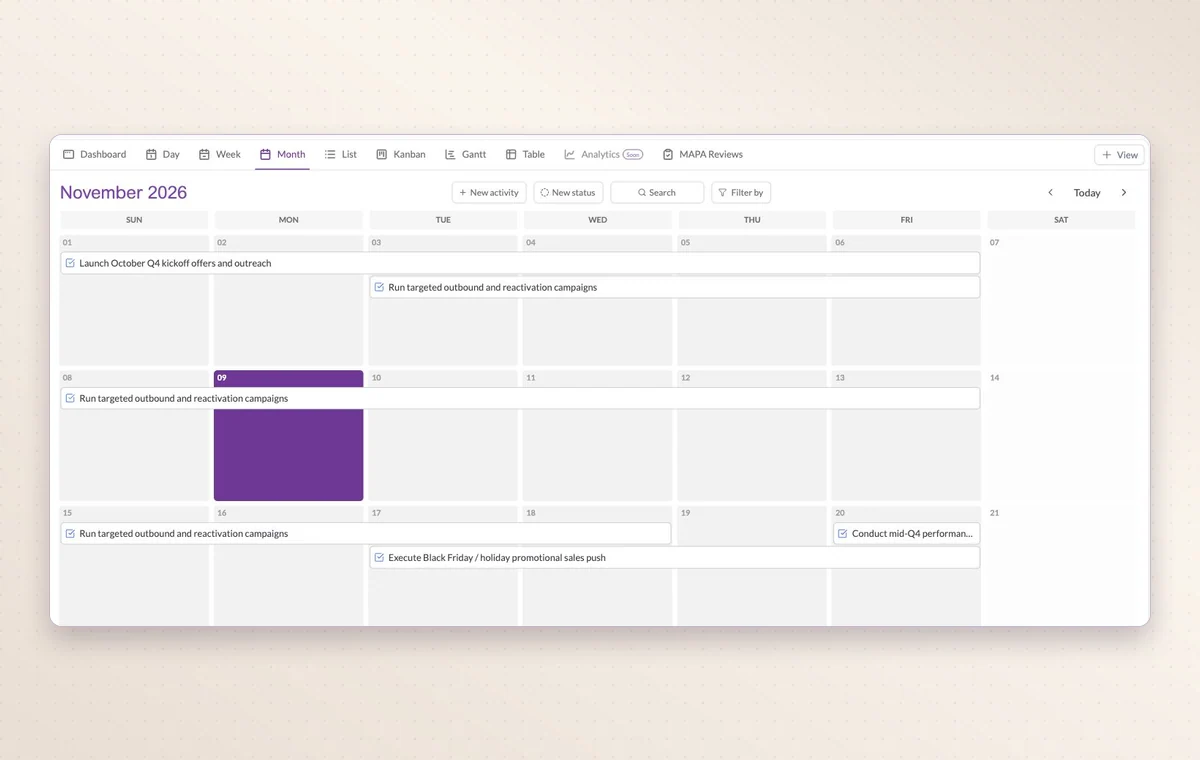
Month view in Work Hub with scheduled activities spanning several days.
Project views

In day-to-day work

See where work is waiting

Each Kanban column groups work at the same stage. If several tasks are waiting for review, you can see them together.

Make room for the next deadline

Look at one day, the week or the whole month to see which appointments already share the calendar with your deliveries.

Check before you promise a date

Gantt lays out activities along a timeline. Look for overlapping dates before you promise the team another delivery.

Explore these features

Before you start

A few good questions.

Do I need to create the same task in every view?

No. Views organize the activities in the selected project. Dates and statuses determine where the work appears.

When would I choose the table over Kanban?

Choose the table to compare details across items. Choose Kanban when the question is how much work sits in each stage.

GGyess WorkSuite

Bring the right view to your next meeting.

Start on the free plan. Invite your team when you’re ready.

GGyess screenshot