GGyess / Features Give every “I’ll take it” a name and a date. A promise made in one meeting is easy to forget in the next. Create a task, assign it to the person doing the work and agree on a due date and the steps to finish.
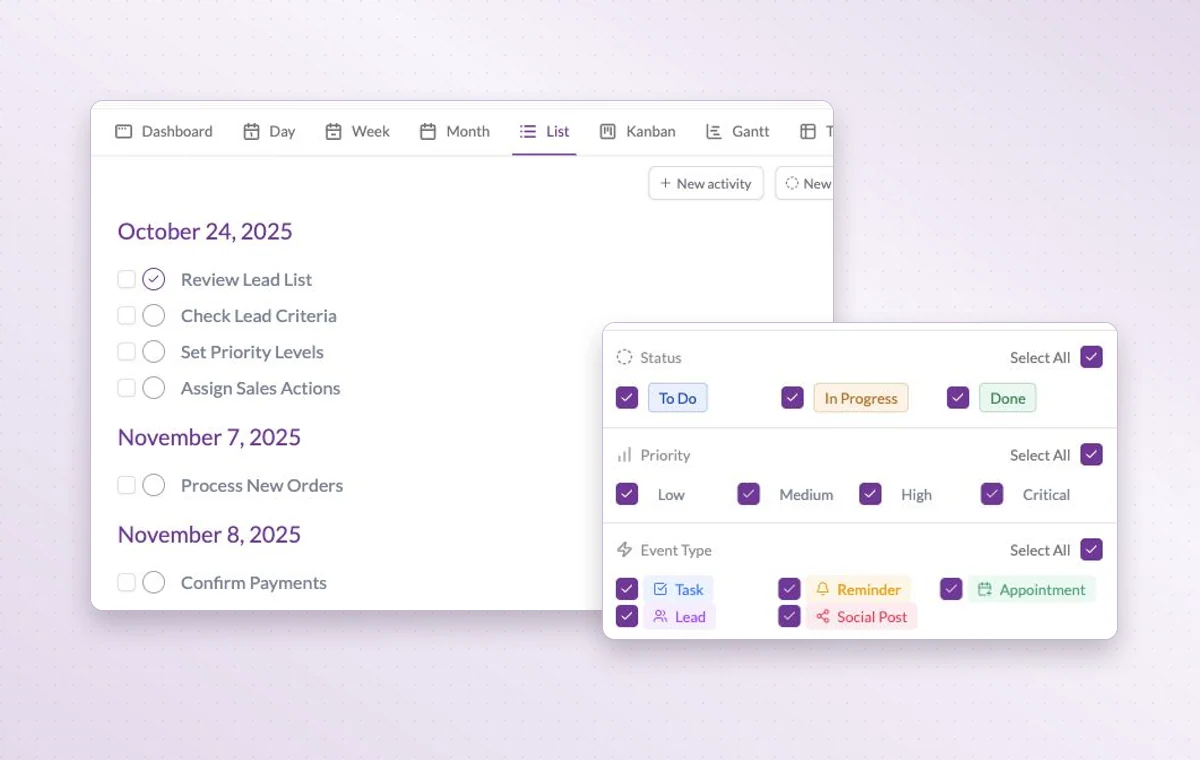
The list groups activities by date. Use the filters to review open work or focus on higher priorities.
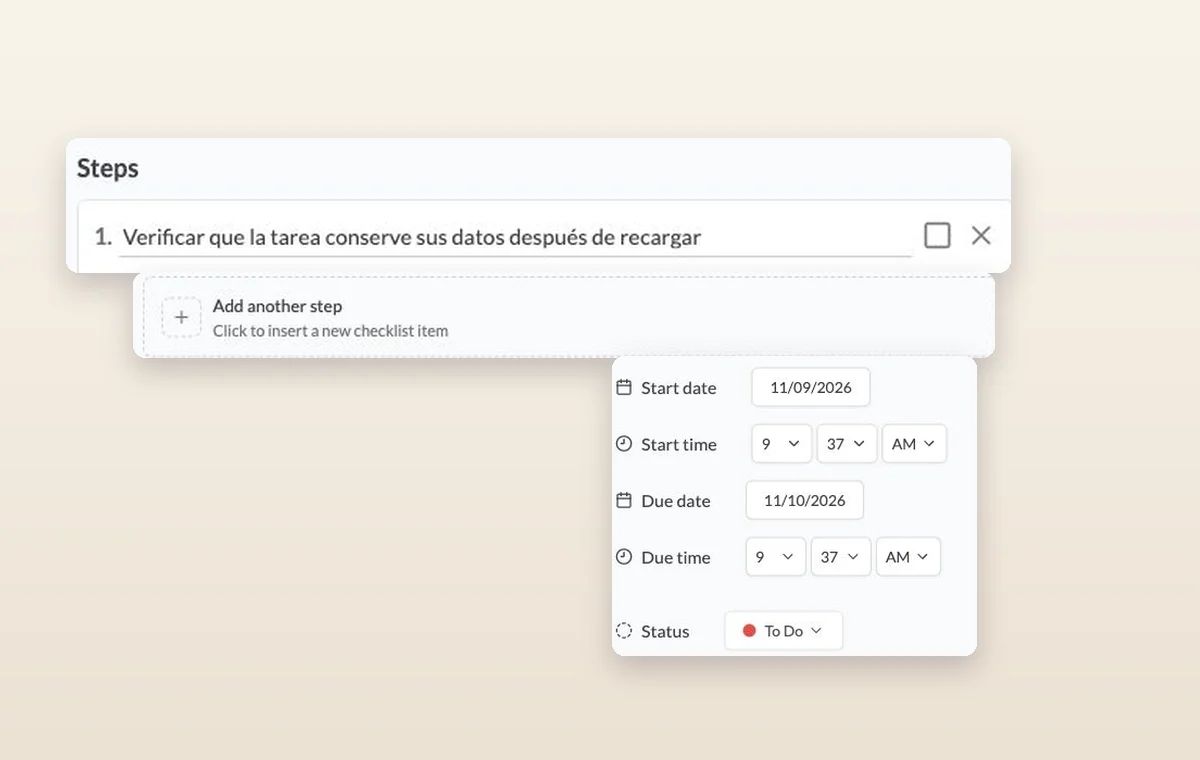
Make the next action clear 01 Name what you need to deliver and list the steps to finish it.
02 Choose owners, priority and a due date.
03 Update the status and record decisions on the task.
Steps on a task, the control for adding another step, and its start date, due date and status.
In day-to-day work Someone to turn to Assign the people responsible for the task. If the plan changes, the team knows who to speak to and which assignments to revisit.
Break down a larger task Put quick checks on the main task. If a piece of work needs its own status, make it a subtask so people can follow its progress.
A start and a deadline Set both dates on the task. The person doing the work can plan a start and the person waiting for it knows when it’s due.
A few good questions. Should I use a checklist or a subtask? Use a checklist for small checks inside a task. Create a subtask when a piece of work needs its own status and detail.
When should I use a recurring task instead of a reminder? Use a recurring task when someone must complete work and report its status. A reminder suits a prompt to check or follow up.
Leave the meeting knowing who does what next. Start on the free plan. Invite your team when you’re ready.
Cookie settings × Strictly necessary Always on
The site remembers your choice for 180 days in this browser. You can browse every page with optional tools turned off.
Your browser is sending a Global Privacy Control signal. Optional tools stay off.
We remember your advertising opt-out in this browser for at least 12 months. You can change it here if you wish.
I confirm my new advertising choice Français (Québec) Português (Brasil) Privacy Cookie policy
Your browser could not save this choice. Optional tools stay off.
We could not confirm this choice. Optional tools are off. You can try again or continue browsing.
Reject all Save preferences