GGyess
Sort work

Put the nearest deadline at the top.

A delivery due tomorrow can sit at the bottom of a long list. Sort by due date to see it in time, then switch to priority when it’s time to decide what to tackle first.

Inside GGyessEnlarge screenshot
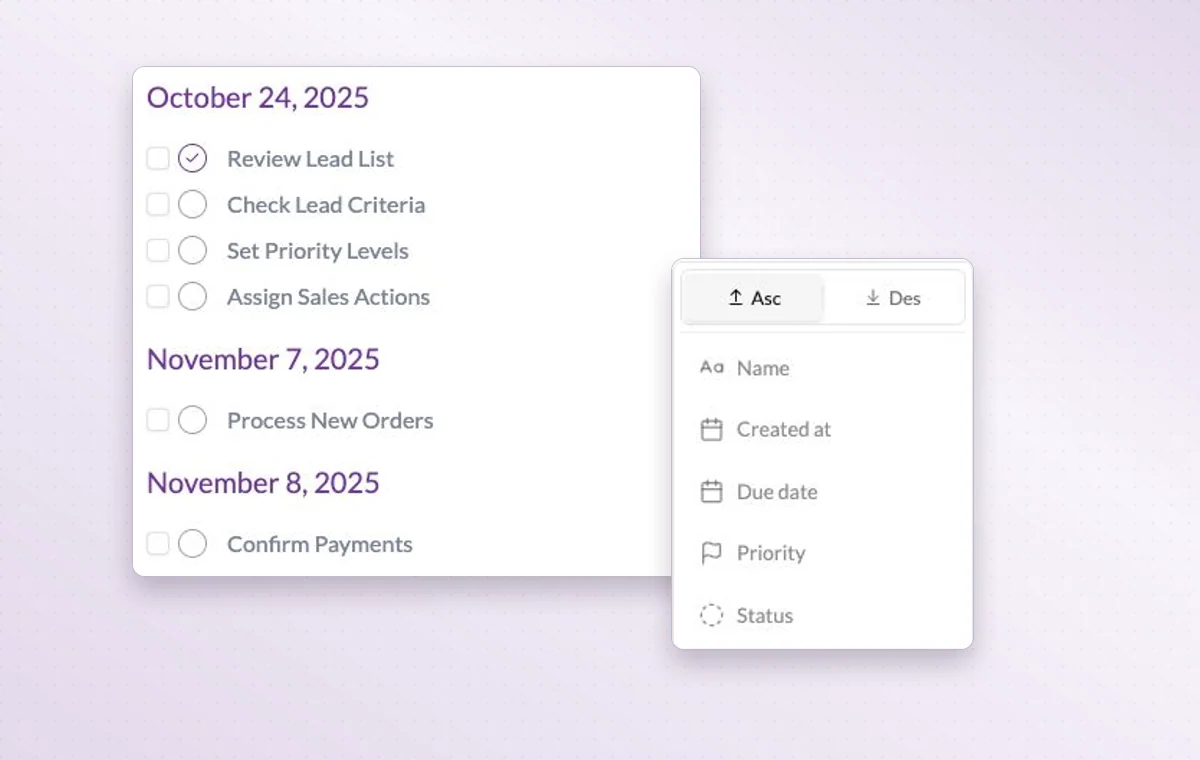
A task list alongside the sorting options for name, creation date, deadline, priority and status.
The sort menu offers ascending and descending order by name, creation date, due date, priority or status.
Step by step

Put the nearest deadline at the top

  1. Open Sort by in the active project.

  2. Choose Due date if you need to see which delivery comes first.

  3. Select ascending or descending order and inspect the first items.

Inside GGyessEnlarge screenshot
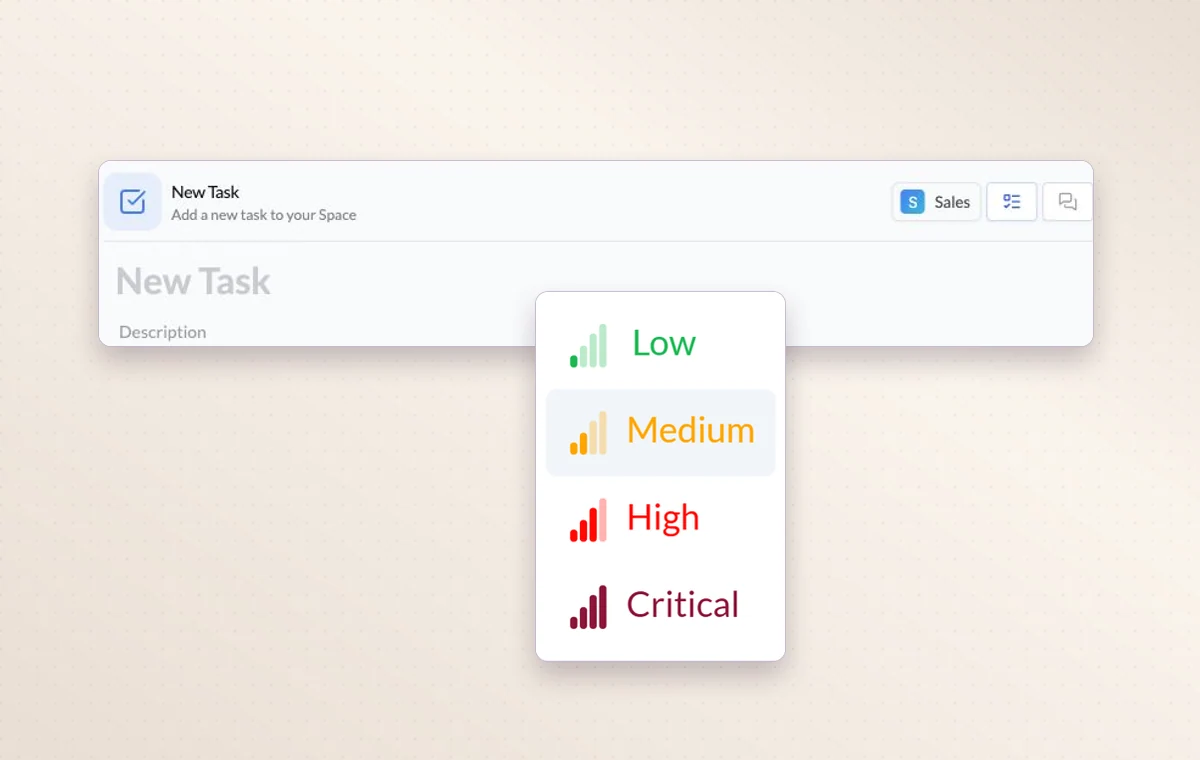
A task with four available priority levels, from low to critical.
Sort work

In day-to-day work

Put the next deadline first

Sort by due date when time matters, by priority or status for a review, or by name and creation date when looking for a particular item.

A start and a deadline

Set both dates on the task. The person doing the work can plan a start and the person waiting for it knows when it’s due.

Give urgent work a place

Use the four levels from Low to Critical. Filter by priority when the team needs to decide which deadline to tackle first.

Before you start

A few good questions.

How is sorting different from filtering?

Sorting rearranges the items in view. Filtering narrows which items appear. You can use both in the same review.

Can I look at tasks separately from appointments?

Yes. The event type filter lets you select tasks, appointments, reminders and other activity types.

GGyess WorkSuite

Keep the next delivery in sight.

Start on the free plan. Invite your team when you’re ready.

GGyess screenshot