Routine checks often depend on whoever remembers to write them down. Set the review’s frequency and dates, then add the steps so the work has a regular place on the calendar.
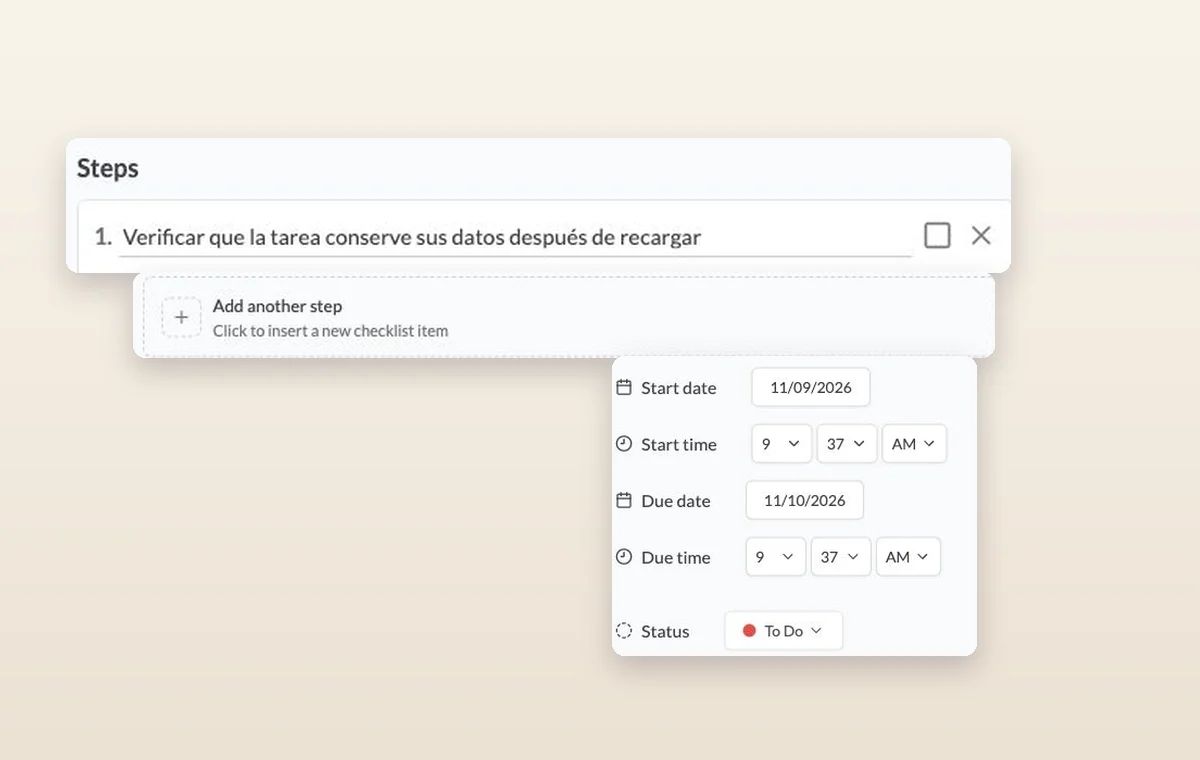
Steps on a task, the control for adding another step, and its start date, due date and status.
Recurring tasks
In day-to-day work
Work that comes around again
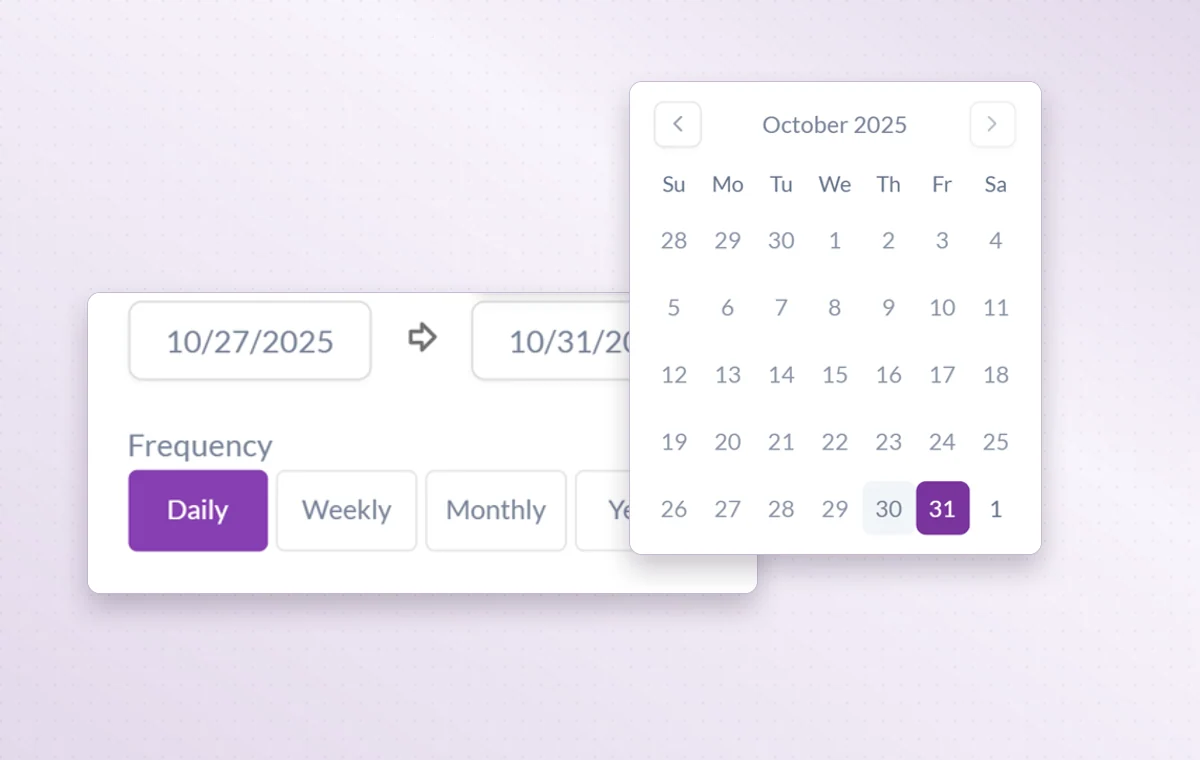
For a Friday review or a monthly check, set the frequency in the task’s date settings.
A start and a deadline
Set both dates on the task. The person doing the work can plan a start and the person waiting for it knows when it’s due.
Break down a larger task
Put quick checks on the main task. If a piece of work needs its own status, make it a subtask so people can follow its progress.
Before you start
A few good questions.
When should I use a recurring task instead of a reminder?
Use a recurring task when someone must complete work and report its status. A reminder suits a prompt to check or follow up.
Can I bring in an external calendar?
GGyess offers Google Calendar and Microsoft Calendar connections. Your account connection, selected spaces and sync settings determine what is included.
With your permission, we use Google Analytics to see which pages people visit and whether they click the registration buttons. Google Ads measures visits from ads. With separate permission, Google Signals can associate this visit with a signed-in Google account for aggregate reports. With your permission, Microsoft Clarity may record clicks and scrolling to replay your visit.Cookie policy.