GGyess / Features Skip the task-by-task rewrite. The work is already in a spreadsheet or your notes. Describe it to the assistant or import the rows, review the suggested tasks and confirm which ones belong in the project.
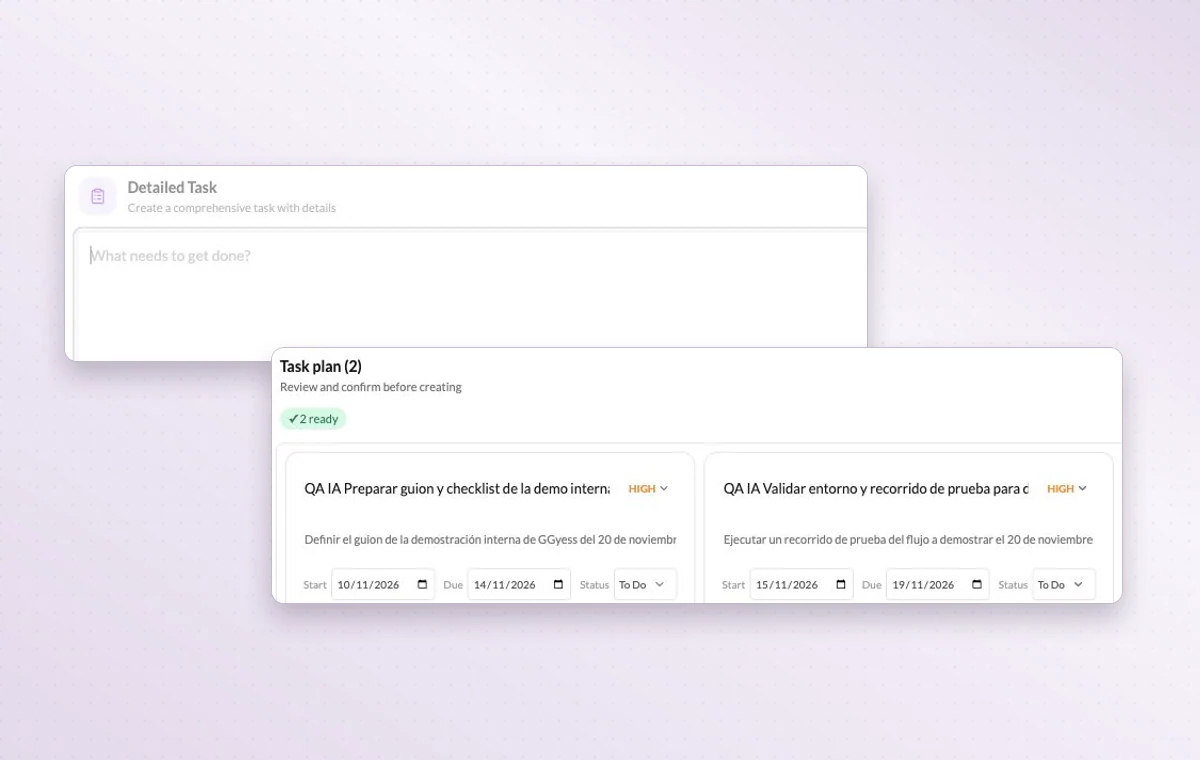
AI tools vary by plan. Compare plans The task plan preview brings the proposed tasks together so you can review their details before creating them.
Turn the next deliverable into actionable tasks 01 Select the project and describe the actions you need.
02 Inspect the generated titles, details and proposed dates.
03 Confirm the tasks you want and open them in the project list.
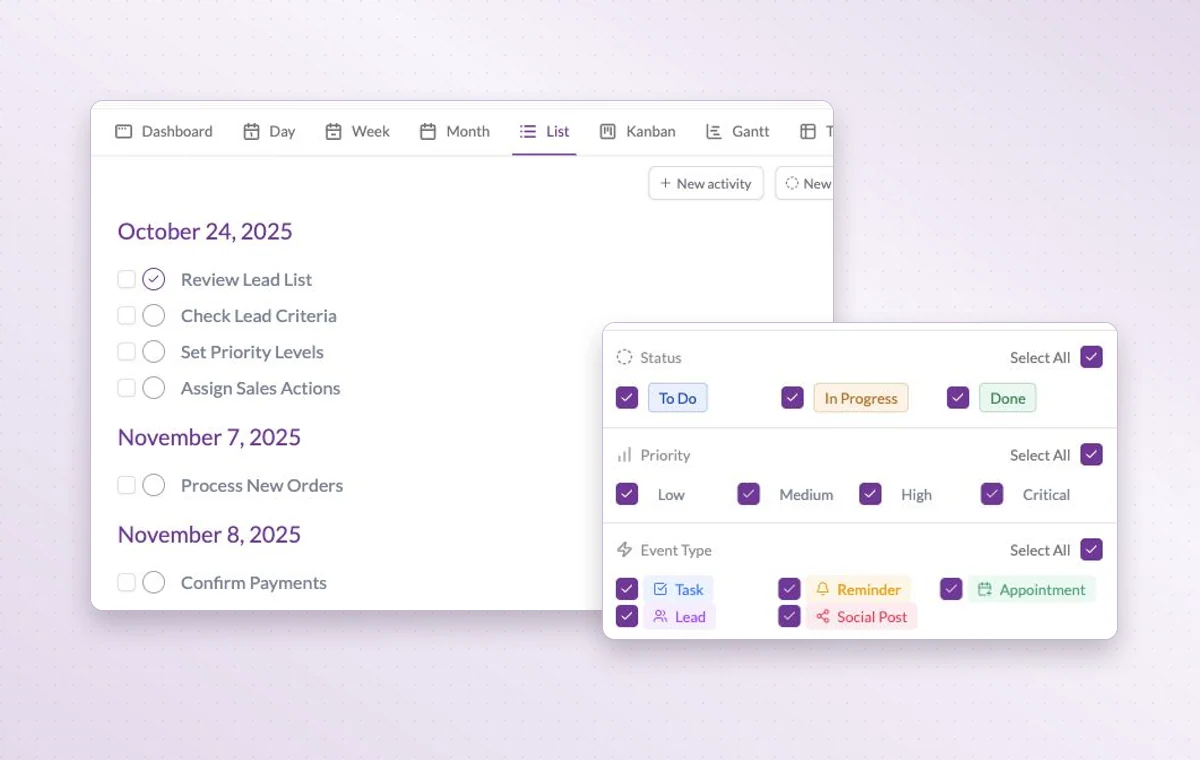
The task list with filters for status, priority and activity type.
In day-to-day work A first draft of the task list Describe the work to the AI assistant in your project. Review its proposed tasks and adjust the details before creating them. Available on paid plans.
Break down a larger task Put quick checks on the main task. If a piece of work needs its own status, make it a subtask so people can follow its progress.
Someone to turn to Assign the people responsible for the task. If the plan changes, the team knows who to speak to and which assignments to revisit.
A few good questions. Can I start with existing spreadsheet rows? The assistant has an Excel/CSV import flow with a preview before creation. Check the proposed mapping, owners and dates before confirming.
What question should I try first? Try “Which tasks in this project are due this week?” A specific scope makes the response easier to verify against your project calendar.
Move from notes to tasks with one final review. You can create an account for free. The AI tools available to you depend on your plan.
Cookie settings × Strictly necessary Always on
The site remembers your choice for 180 days in this browser. You can browse every page with optional tools turned off.
Your browser is sending a Global Privacy Control signal. Optional tools stay off.
We remember your advertising opt-out in this browser for at least 12 months. You can change it here if you wish.
I confirm my new advertising choice Français (Québec) Português (Brasil) Privacy Cookie policy
Your browser could not save this choice. Optional tools stay off.
We could not confirm this choice. Optional tools are off. You can try again or continue browsing.
Reject all Save preferences