
Describe the image you have in mind
Say what the image should show, where the scene takes place and what belongs in the foreground. The team can review the idea against the same brief.
“Make it feel more personal” can mean something different to every reviewer. Describe the framing, audience and intended use in a GGyess document. If your account includes image generation, try the concept there.
AI tools vary by plan. Compare plans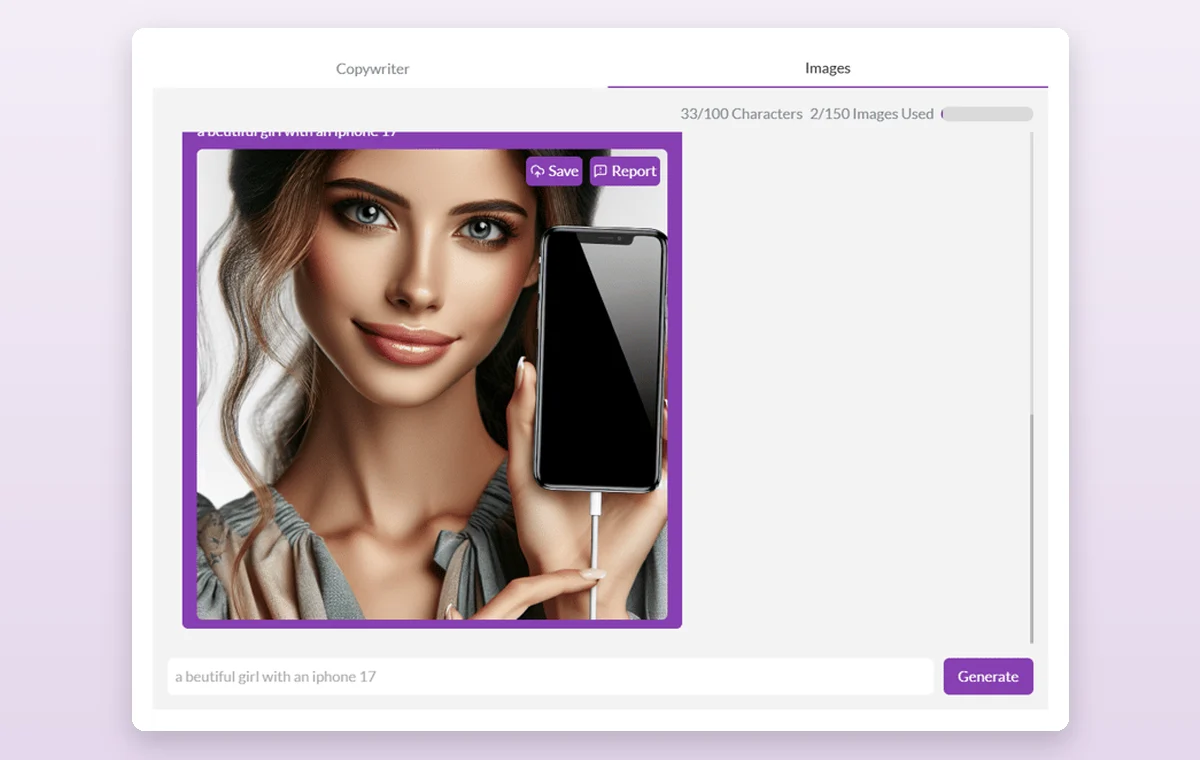
Open a project document and describe the subject, format and intended audience.
If your workspace includes the image tool, use the description to explore a concept. Otherwise, add an existing image as a reference.
Review the image, brand fit and usage rights before publication.
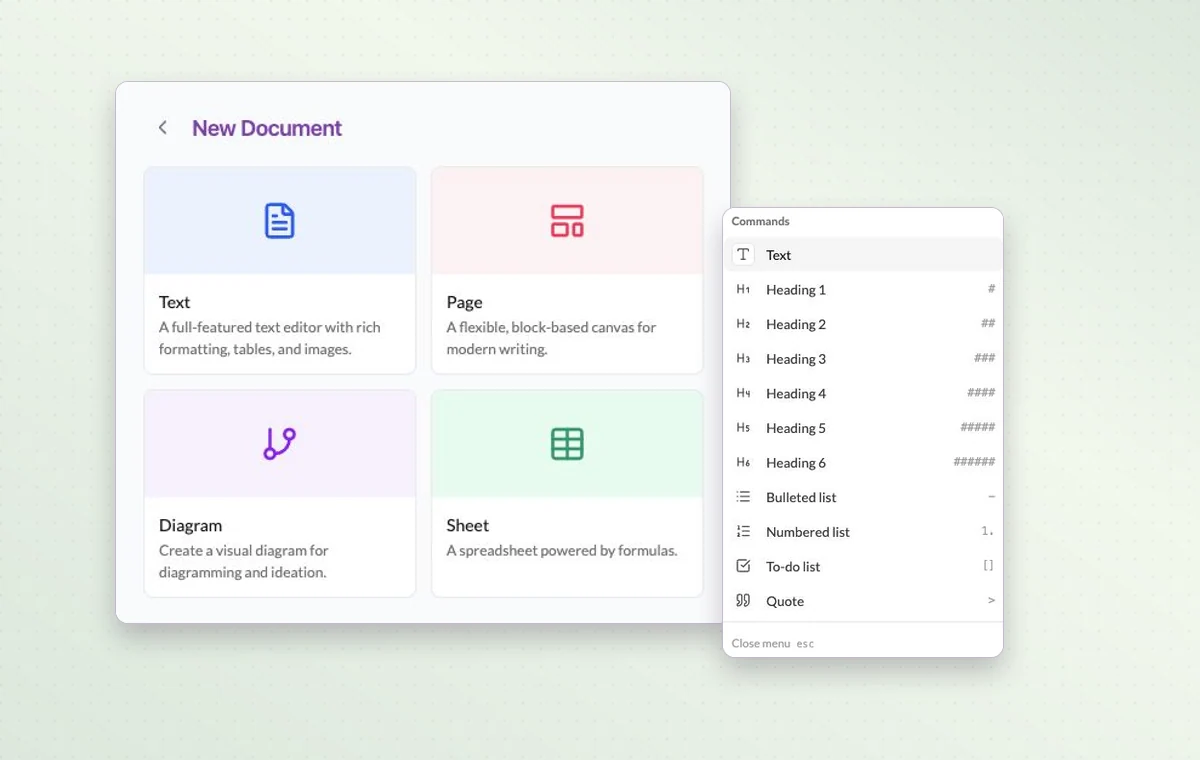
Say what the image should show, where the scene takes place and what belongs in the foreground. The team can review the idea against the same brief.
Keep source files in storage and attach the relevant one to the task. The person starting work can open it with the instructions.
Put a change request or decision in a task comment. The next person to open the task can read what was agreed before starting the revision.
The example comes from an earlier version of the image editor. Check your workspace before planning to generate images. You can also use a project document to share your brief and references.
Give the audience, objective and constraints. For example, ask for three launch email angles for returning customers, using a short, practical tone.
You can create an account for free. The AI tools available to you depend on your plan.