GGyess
Workload management

Before you ask for one more thing.

The person who always says yes may already be stretched. Check their assigned tasks and deadlines in GGyess, then decide together what fits, what can wait and who can help.

Inside GGyessEnlarge screenshot
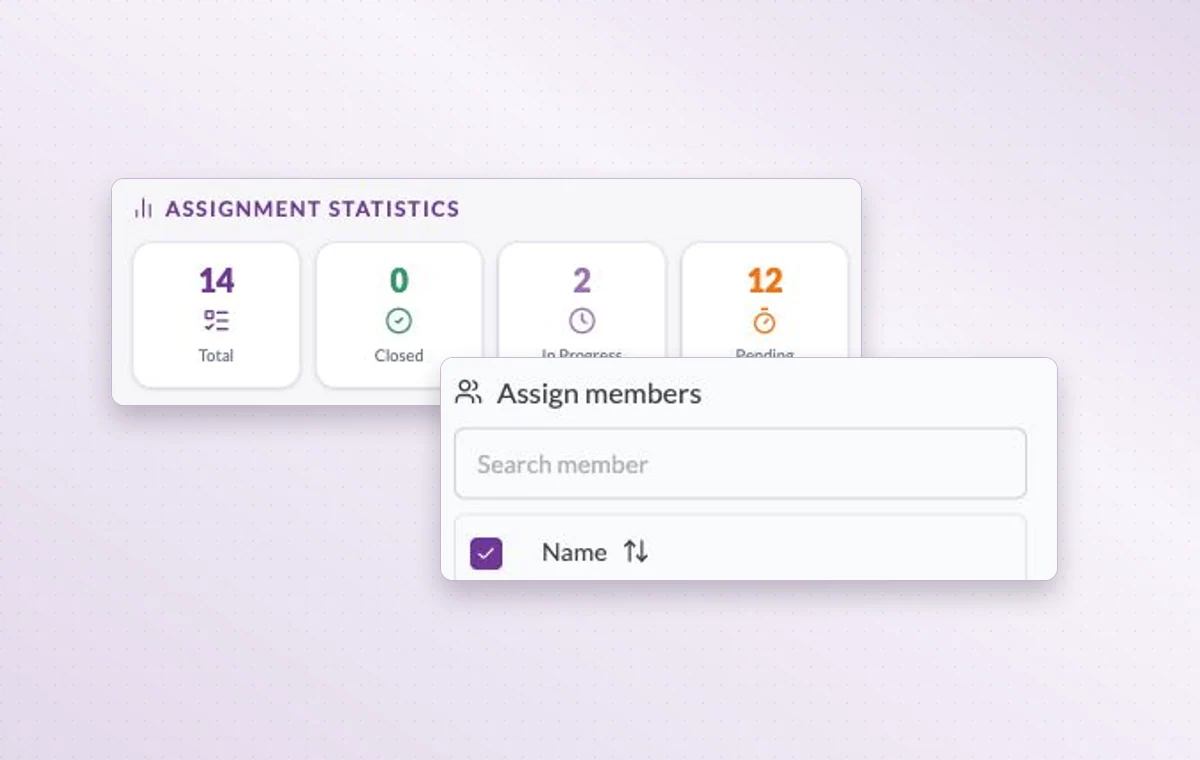
Member assignment statistics and the member search on a task.
Check the assignment counts and use the member picker when you agree to move a task.
Step by step

See who has room for the next assignment

  1. Filter the project by person and active status.

  2. Compare due dates and identify work that can move.

  3. Agree on the handoff, change the owner and update the task.

Inside GGyessEnlarge screenshot
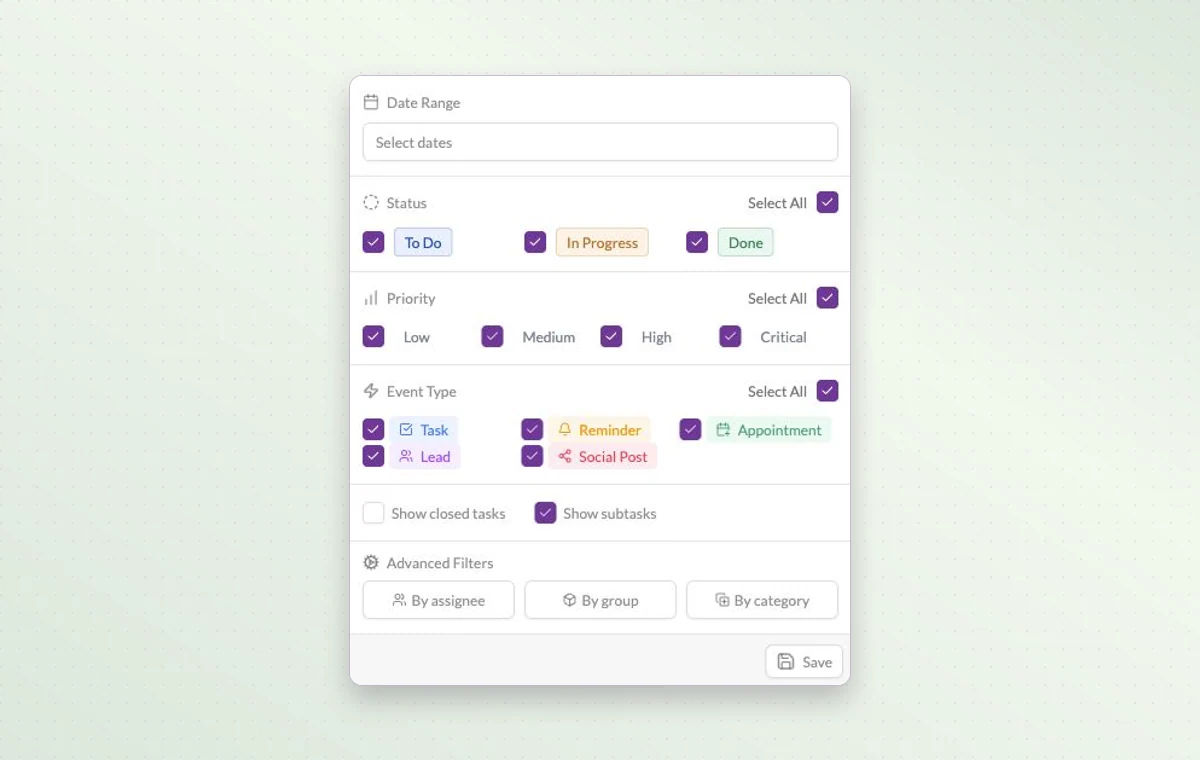
Work Hub filters for date, status, priority, activity type, assignee and group.
Workload management

In day-to-day work

Answer a specific question

Need to know what’s still open this week? Narrow the view by date and status, then add a priority or assignee if you need a shorter list.

Someone to turn to

Assign the people responsible for the task. If the plan changes, the team knows who to speak to and which assignments to revisit.

Check before you promise a date

Gantt lays out activities along a timeline. Look for overlapping dates before you promise the team another delivery.

Before you start

A few good questions.

Does a task count tell me someone’s available hours?

A count is a starting point. Review each task’s scope and dates with its owner to understand available capacity.

How do I check what one person has on their plate?

Open the project filters and choose the assignee. Review their active items, priorities and dates before assigning more work.

GGyess WorkSuite

Make room for a new request before you assign it.

Start on the free plan. Invite your team when you’re ready.

GGyess screenshot