GGyess
Dark mode

Choose a workspace that suits the light.

A bright interface can feel out of place once the room gets dark. Choose the dark theme in your account, or set GGyess to follow your device’s appearance.

Inside GGyessEnlarge screenshot
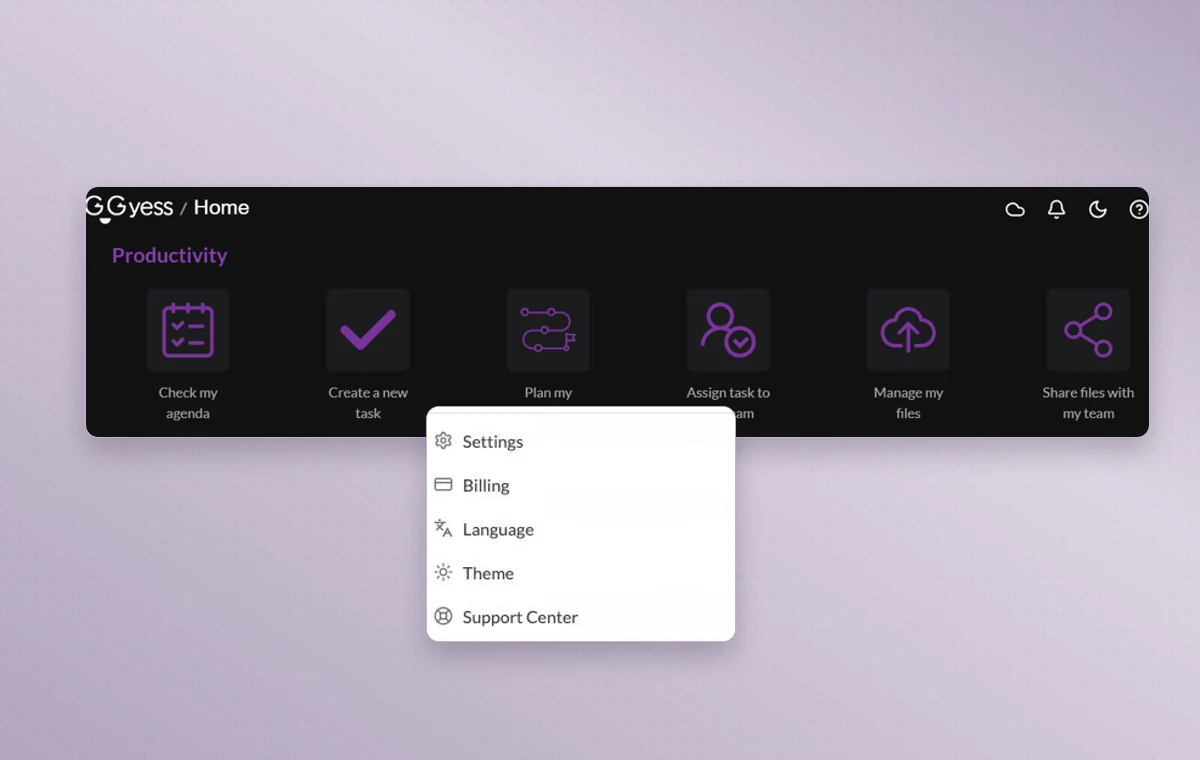
A dark GGyess productivity view and the Theme option in the account menu.
The home screen shows the dark theme. The Theme option in the account menu lets you change it.
Step by step

Read your workspace in the theme you prefer

  1. Open your account menu in GGyess.

  2. Find Theme and choose Light, Dark or System.

  3. Return to the view you use most and check how it reads.

Inside GGyessEnlarge screenshot
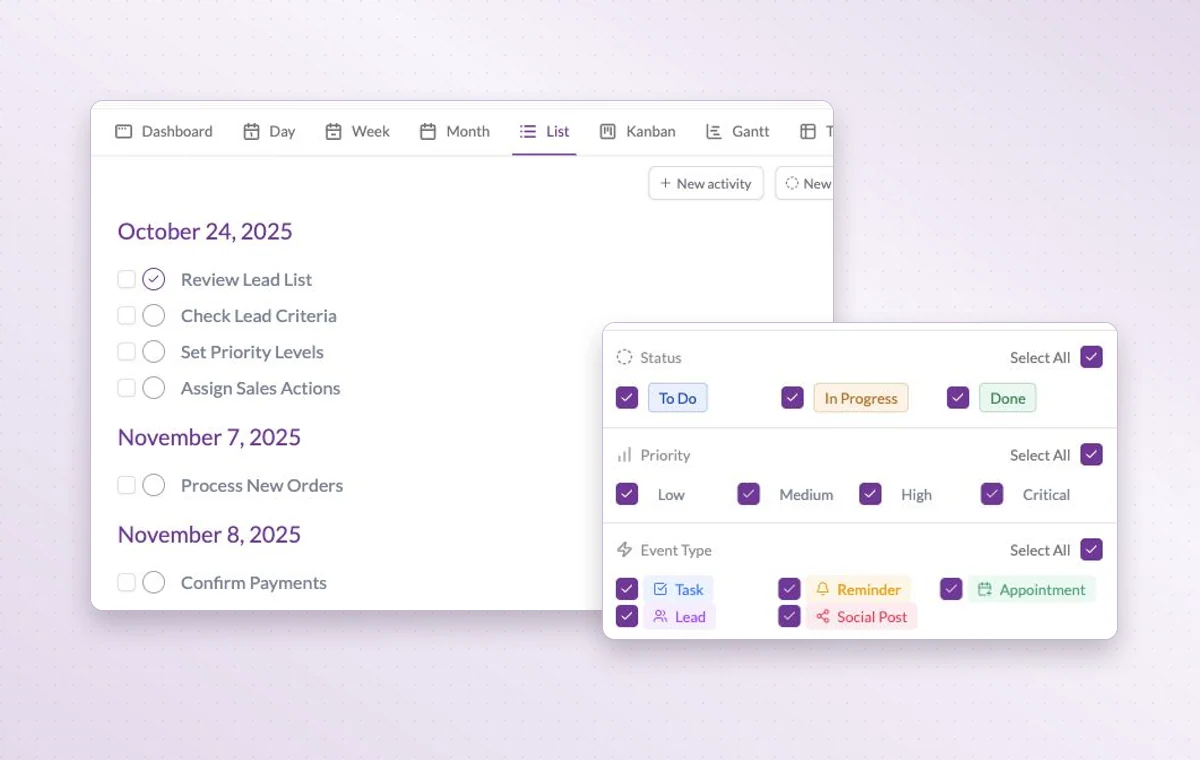
The task list with filters for status, priority and activity type.
Dark mode

In day-to-day work

A light background

Choose Light in the theme menu if you prefer reading your project on a light background.

A dark background

When a bright screen feels out of place, choose Dark in the theme menu and continue where you left off.

Match your device

Choose System to follow the appearance you already use on your device.

Before you start

A few good questions.

Can the theme follow my device?

Choose System in the theme menu to use the appearance selected by your operating system.

Does filtering a list remove tasks?

A filter changes the items in view. Clear it to see the project’s broader activity list again.

GGyess WorkSuite

Settle into the view you prefer.

Start on the free plan. Invite your team when you’re ready.

GGyess screenshot