GGyess
Task statuses

Is it finished or waiting for a review?

“It’s done” can mean different things to the writer and the reviewer. Define the stages your project uses and update the task as it moves so everyone knows what still has to happen.

Inside GGyessEnlarge screenshot
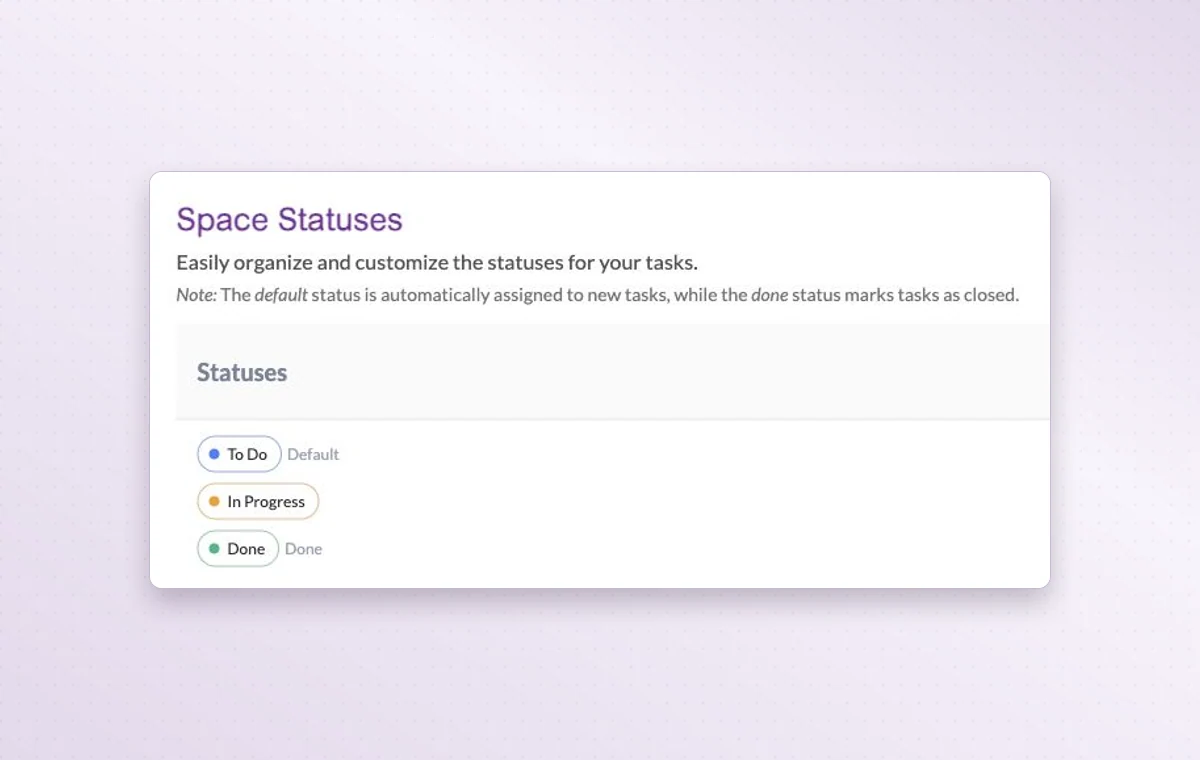
Space status settings show the defaults To Do, In Progress and Done.
Space settings show the project’s starting statuses and the default status assigned to a new task.
Step by step

Show the real stage of the work

  1. Define the stages in project settings.

  2. Give each active task the status that describes its current condition.

  3. Review the stage columns when coordinating the next handoff.

Inside GGyessEnlarge screenshot
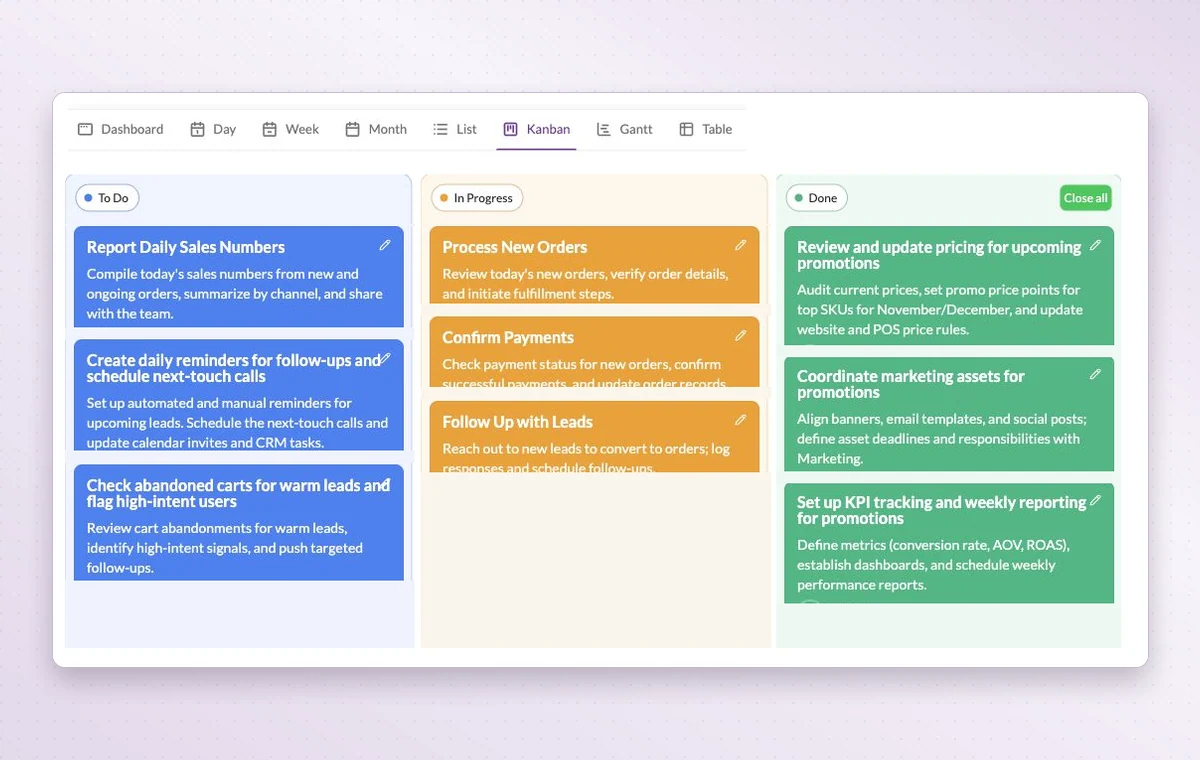
GGyess Kanban board with tasks grouped into To Do, In Progress and Done.
Task statuses

In day-to-day work

The stages your team uses

Use project statuses that match the handoff. For example, “In review” tells the team a draft is ready for someone to read.

See where work is waiting

Each Kanban column groups work at the same stage. If several tasks are waiting for review, you can see them together.

Retrace a change

If a task looks different from the last time you saw it, open its history and read through the changes recorded there.

Before you start

A few good questions.

Does a parent task’s status replace a subtask’s status?

A subtask has its own status. Check both levels when deciding whether a larger deliverable is complete.

Can a project have its own stages?

Yes. Configure the project statuses and use them to organize the board around your team’s handoffs.

GGyess WorkSuite

Let the next person see exactly where work stands.

Start on the free plan. Invite your team when you’re ready.

GGyess screenshot