When the deadline lives in one email and the brief in another, people start with different pictures of the job. Open a project space, describe the deliverable and add the people doing the work.
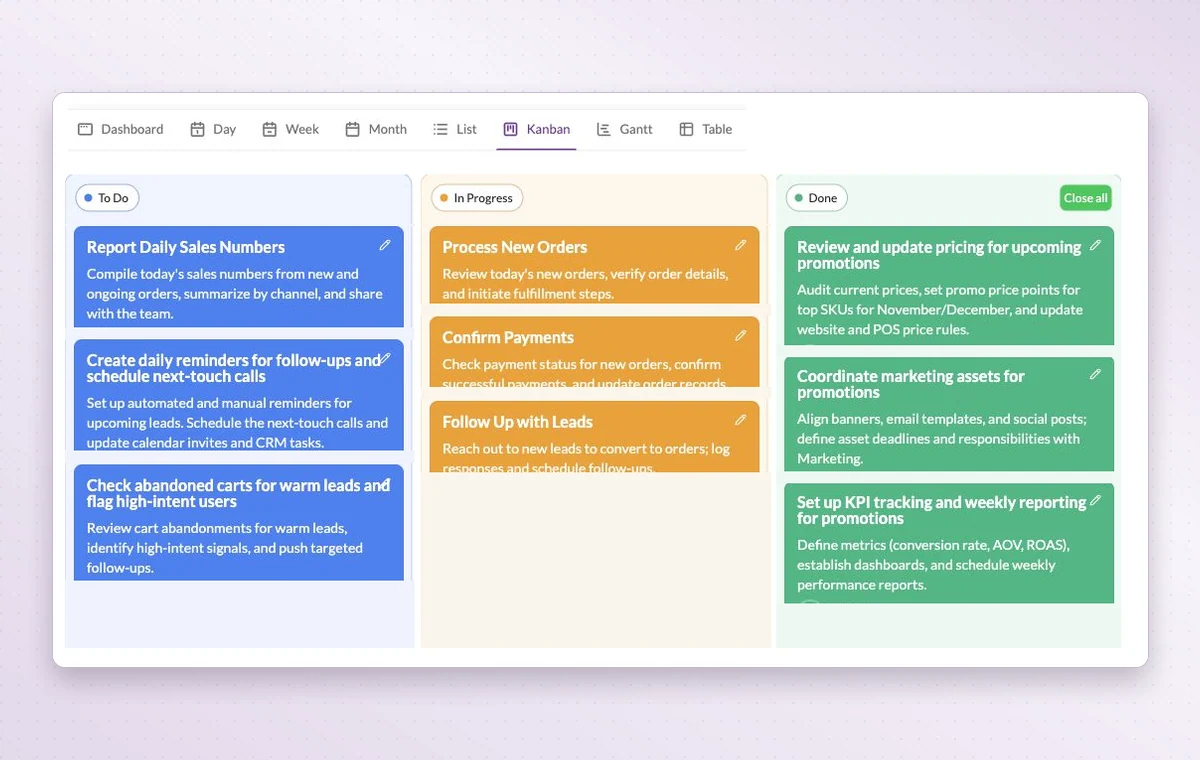
GGyess Kanban board with tasks grouped into To Do, In Progress and Done.
Project spaces
In day-to-day work
A home for each project
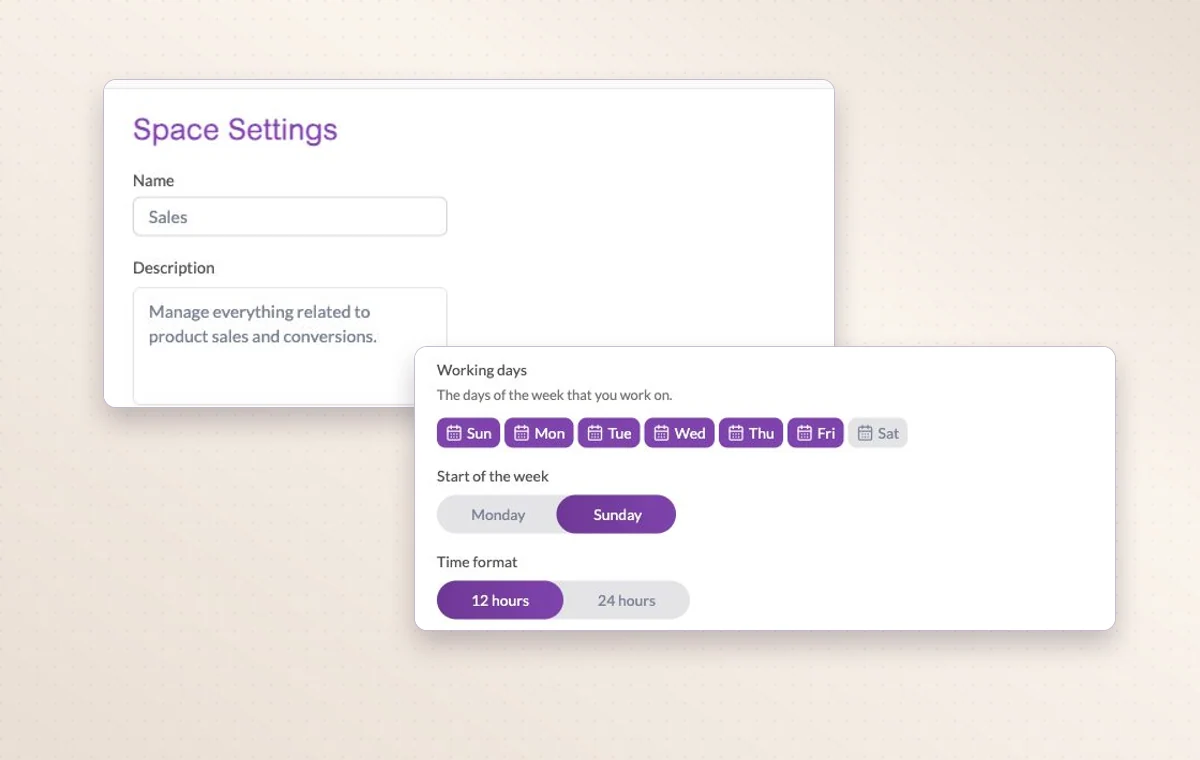
Name the project, describe the outcome and set its working days. The team can add its tasks there as the work takes shape.
The stages your team uses
Use project statuses that match the handoff. For example, “In review” tells the team a draft is ready for someone to read.
The people on this project
Choose the workspace members who will work on this project. You can look at the project membership when you need to know who’s involved.
Before you start
A few good questions.
What is a useful first project?
Pick one deliverable with a clear finish, such as a client onboarding or a campaign brief. It is easier to choose the right stages when you know the outcome.
Where can I see how much of our plan we’ve used?
Open the plan and usage details in the active workspace to see its allowances and current use.
With your permission, we use Google Analytics to see which pages people visit and whether they click the registration buttons. Google Ads measures visits from ads. With separate permission, Google Signals can associate this visit with a signed-in Google account for aggregate reports. With your permission, Microsoft Clarity may record clicks and scrolling to replay your visit.Cookie policy.