GGyess
List view

Pick up the task you had to put down.

After an interruption, getting back to where you were takes a moment. Open the project list, find the activity by date and check its instructions before you carry on.

Inside GGyessEnlarge screenshot
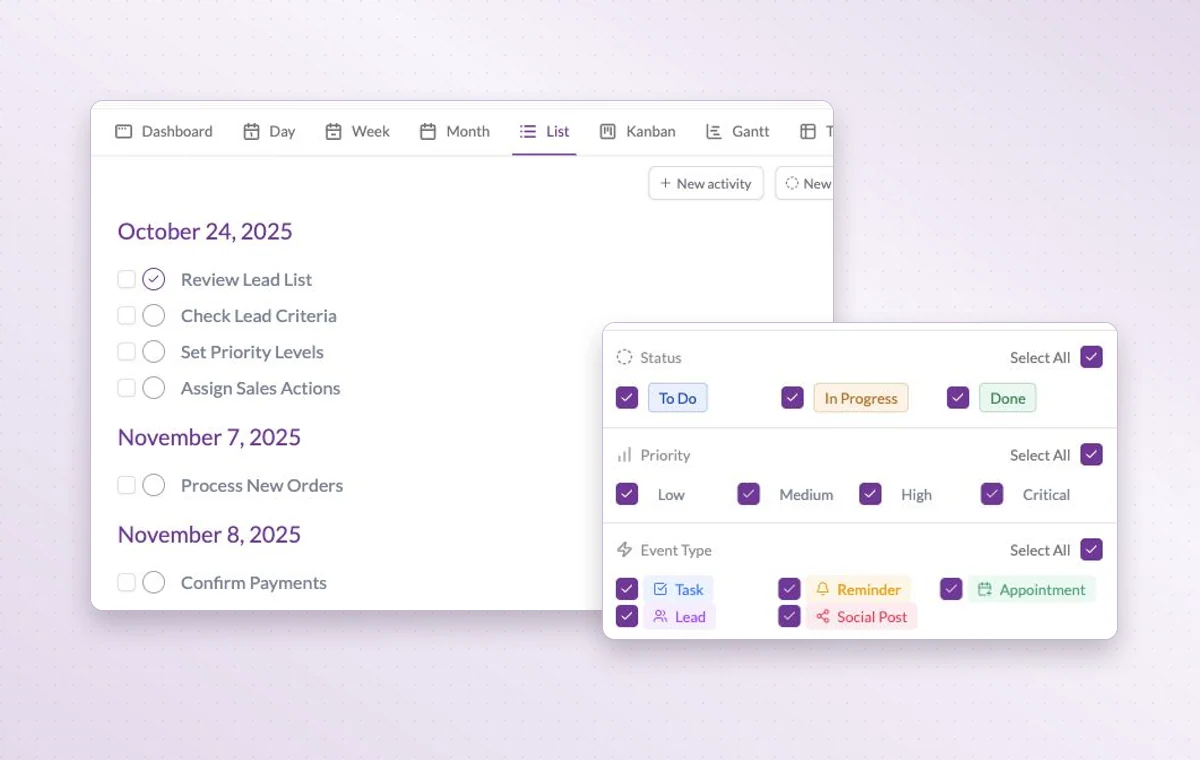
The task list with filters for status, priority and activity type.
List view groups activities by date. Filter by status to bring unfinished work into focus.
Step by step

Work through a readable list of tasks

  1. Open a project in list view.

  2. Check upcoming work and filter out closed tasks if needed.

  3. Open the next item and review what counts as done.

Inside GGyessEnlarge screenshot
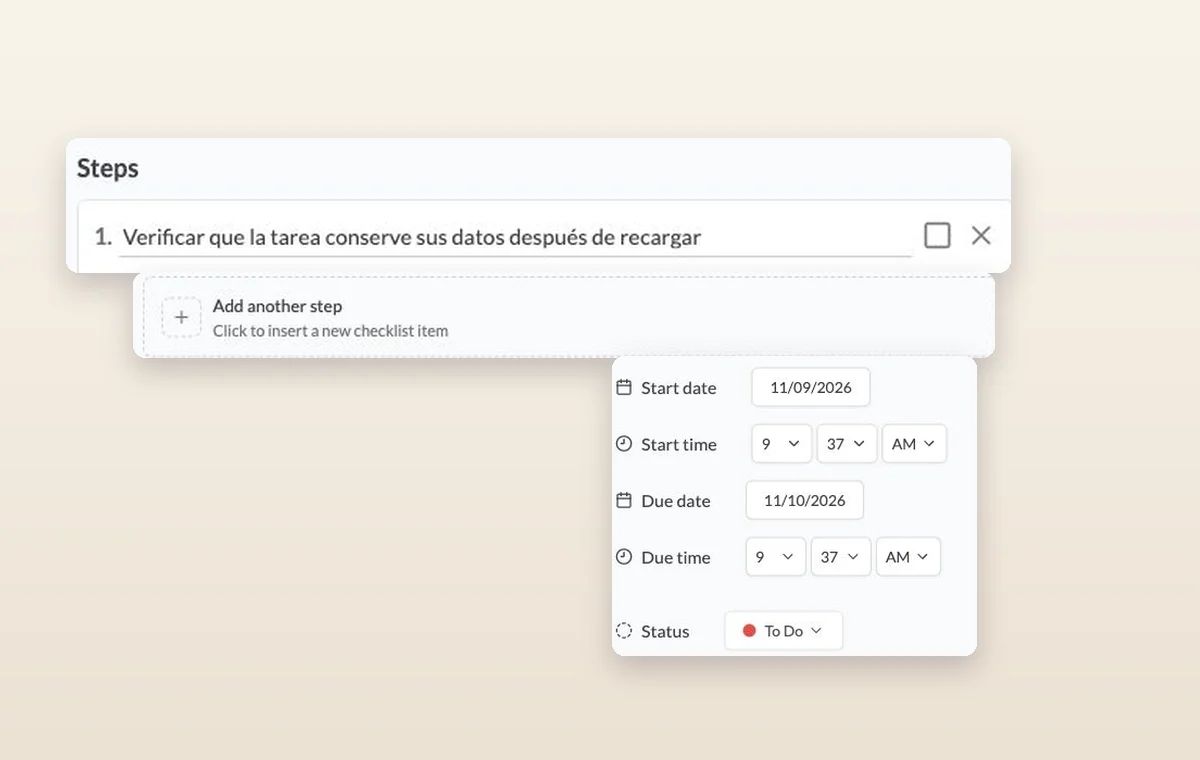
Steps on a task, the control for adding another step, and its start date, due date and status.
List view

In day-to-day work

Open the next task

Choose a task in the list to read the instructions, check the remaining steps and update its status when it’s ready.

Break down a larger task

Put quick checks on the main task. If a piece of work needs its own status, make it a subtask so people can follow its progress.

A start and a deadline

Set both dates on the task. The person doing the work can plan a start and the person waiting for it knows when it’s due.

Before you start

A few good questions.

Can I see subtasks in the list?

The project filters include a Show subtasks option. Use it when your review needs the smaller pieces as well as their parent tasks.

Should I use a checklist or a subtask?

Use a checklist for small checks inside a task. Create a subtask when a piece of work needs its own status and detail.

GGyess WorkSuite

Know where to start when you come back.

Start on the free plan. Invite your team when you’re ready.

GGyess screenshot